

Hard Disk Not Detected In Bios
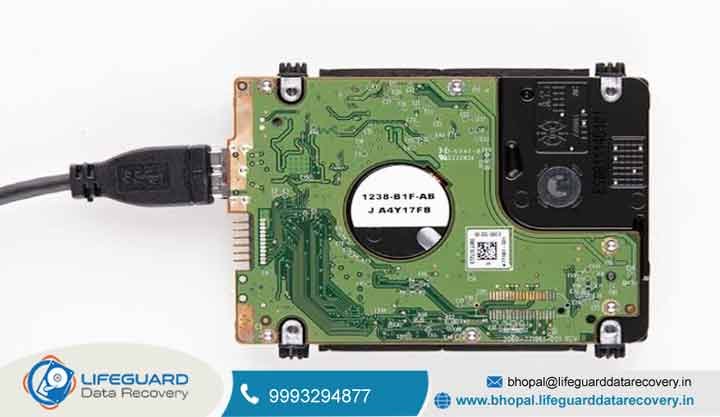
When you power on your computer and stare blankly at a black screen showing messages like “No Bootable Device Found,” or check your system setup utility only to find your main drive completely missing, it is totally normal to panic. Whether you are running an office in MP Nagar facing an urgent server blackout, working on a deadline-heavy CAD design in Arera Colony, or losing your college thesis right here in Bhopal, dealing with a hard disk not detected in bios is one of the most stressful tech crises you can face.
At Lifeguard Data Recovery, we get how scary sudden data loss feels, how fast business uptime drops to zero, and how much those lost files mean to you. Lifeguard Data Recovery is proud to be Bhopal and Madhya Pradesh’s go-to name for reliable, high-level data restoration. Our certified specialists focus heavily on stubborn hardware bugs, broken firmware, and fried circuits, bringing you real security when your machine gives up.
We blend cleanroom technology with deep, part-by-part testing to get your files back safely. If your internal drive or external backup has gone completely quiet, skip the random online software fixes that might make things worse. Reach out to our team today for a safe checkup, enjoy our no-data, no-fee guarantee, and let Bhopal’s trusted recovery pros bring your digital life back. Call Now for Emergency Recovery at 9993294877 or drop us a line at bhopal@lifeguarddatarecovery.in.
Why Is My Hard Drive Not Showing Up in BIOS?
To figure out why a storage drive vanishes, it helps to know what the BIOS or UEFI setup actually does. Think of the Basic Input/Output System as the foundational software that wakes up your hardware parts when you push the power button, right before handing the wheel over to Windows or your operating system.
When the computer boots up, the motherboard checks its ports to spot connected drives, read boot sectors, and load up the right drivers. If a hard disk not recognized by BIOS happens, it means the physical link between the mainboard and your storage has completely broken down.
This breakdown can happen for all sorts of reasons, from simple loose wires to deep physical damage. For instance, a shaky SATA cable or a tired power cord can starve the drive of the juice it needs to spin up and tell the motherboard it is there. On the flip side, tougher cases involve worn-out magnetic platters, a fried microchip on the circuit board caused by a power spike, or scrambled firmware inside the drive itself. Figuring out whether it is just a loose wire or a major mechanical failure takes calm, step-by-step testing and real professional tools.
Step-by-Step DIY Troubleshooting: How to Fix Hard Drive Not Detected in BIOS
Before you assume your drive needs deep lab surgery, it is smart to rule out basic physical or settings issues with some careful, hands-on checks. Here are some reliable diagnostic steps to see if you can safely get your drive talking to the system again.
1: Check Physical Connections (SATA Cables and Power Cables)
Dust, regular vibrations, and heat shifts can cause internal cables to wiggle loose over time. Shut down your PC or laptop completely, pull the power plug, and touch something metal to get rid of static before opening the case. Take a close look at both ends of the SATA data cable running from your drive to the motherboard.
Make sure the power line coming straight from your power supply unit is plugged in tight. In many situations, swapping out a tired cable for a fresh one instantly fixes a hard drive not detected due to SATA cable issue.
2: Verify Whether the Hard Drive Spins Up
When a normal mechanical hard disk gets proper power, the internal spindle motor should kick in, creating a slight hum and a faint vibration that you can feel with your fingertips on the metal casing. If the drive stays totally dead, silent, and cold even after you checked the power line, you are likely looking at a dead power port, a shorted circuit board, or a jammed motor.
Never try to pry open a stuck motor yourself-opening the casing outside of a cleanroom environment will instantly destroy any chance of getting your files back.
3: Load BIOS Default Settings and Clear CMOS
Bad motherboard settings, messy memory data, or crossed legacy and UEFI boot options can make your system ignore plugged-in drives. Restart your computer and tap the correct key (like Delete, F2, or F12) to open your BIOS menu. Look for an option that says Load Setup Defaults or Optimized Defaults, save the changes, and reboot.
If the configuration glitch runs deep, turning off the machine and popping out the small CMOS battery on the motherboard for a couple of minutes can wipe away stubborn settings errors.
4: Check SATA Controller Mode (AHCI vs. RAID / IDE)
Modern motherboards use different SATA modes to tune performance for various operating systems. If a sudden power cut or a firmware update shifts your storage mode from AHCI to RAID by accident, your attached drives might vanish from the boot list.
Head into your BIOS settings menu and make sure the controller mode matches the setting used when your OS was first installed. Be careful here, because changing this the wrong way can cause startup crashes.
5: Enable or Unhide Disabled Storage Ports in BIOS
Lots of current motherboards come with a mix of SATA ports, NVMe slots, and M.2 headers, and some can be turned off automatically to save resources. If a specific port got toggled off, your PC will completely ignore anything plugged into it. Pop open your BIOS utility, browse over to the Advanced Chipset or Storage configuration screens, and double-check that every port is switched to Enabled instead of Auto or Off.
Advanced Hardware and Compatibility Scenarios
When basic cable checks and setting resets don’t bring your drive back, trickier hardware clashes are usually the culprit. Knowing about these unique hurdles helps narrow down the exact point of failure.
Scenario A: Hard Drive Not Detected After Changing Motherboard
Swapping out a computer motherboard is a huge change that brings in fresh chipsets, new UEFI code, and different security rules. Many modern boards come with features like Intel Volume Management Device or complex RAID turned on right out of the box.
When you hook an older drive up to a brand-new board running strict new rules, the storage controller fails to recognize the old file structure or device signature. Switching the SATA setup back to legacy or compatibility mode inside the new BIOS usually fixes this.
Scenario B: Hard Drive Not Detected After Installing Windows or OS Updates
It is pretty normal for users to lose sight of a drive during or right after a fresh Windows installation or major feature patch. This usually happens when the Windows setup media lacks the specific controller driver needed to talk to newer NVMe chips or RAID setups.
During the installation wizard, the drive might refuse to show up until you load the right third-party manufacturer driver manually using a USB thumb drive.
Scenario C: M.2 NVMe and SATA Port Bandwidth Conflicts
Today’s computer layouts often force compromises to handle high-speed data lanes. On many motherboards, plugging in a lightning-fast M.2 NVMe solid-state drive will automatically shut off one or more standard SATA ports because they share the exact same physical wiring lanes.
If you plugged an extra drive into a port that got disabled by an active M.2 slot, your BIOS will pretend it doesn’t exist at all. Checking your motherboard manual will point out these hidden sharing conflicts so you can move the drive to an active port.
What If the Hard Drive is Still Not Detected in BIOS? Understanding Critical Failures
When you have run through every troubleshooting trick and your storage medium still refuses to show up in the BIOS screen, the issue has moved past a simple settings bug. You are now dealing with a serious physical, electronic, or firmware breakdown, and professional help is your only option.
Firmware Corruption and Service Area Damage: Standard hard drives rely on internal control code saved on a locked section of the magnetic platters. If this hidden service area gets messed up, the drive can’t load its internal translator, making it invisible to any computer.
Printed Circuit Board Component Burnout: Sudden power spikes, messy local power grids, or a failing power supply can fry tiny chips, diodes, and voltage regulators on the drive’s external circuit board, killing power flow instantly.
Mechanical Head Crash and Stiction: Physical drops, bumps, or plain old wear and tear can cause the ultra-thin read and write heads to smash into the platters or weld themselves to the surface, stopping the motor from turning.
Stop and Protect Your Data: Risks of Continued DIY Troubleshooting
When a hard drive stops showing up in the BIOS, keeping up with risky home experiments can easily turn a fixable data loss problem into permanent, gone-forever destruction.
Avoid Freezing Drives: An old myth claims putting a broken hard drive in the freezer will bring it back to life. In reality, condensation builds up inside the sealed shell as it warms back up, rusting delicate internal parts and gluing the read heads straight to the data platters.
Avoid Uncalibrated Third-Party Utilities: Running aggressive partition fix tools, deep disk formatters, or surface error scanners on a drive that the BIOS cannot even see will often overwrite file tables and scatter your remaining data beyond saving.
Recognize the Threshold: If your drive starts making clicking, grinding, or scraping noises, or if it won’t spin up at all, pull the plug immediately. Every second the drive stays powered on increases the friction and rubs away your precious files.
Professional Data Recovery Services in Bhopal: The Lifeguard Advantage
When hardware breaks down on your work or personal machine, handing your files over to a corner repair shop can spell disaster. Lifeguard Data Recovery gives you a secure, clean-roomed lab setup built specifically for delicate electronic and mechanical file retrieval.
Specialized Cleanroom Lab Infrastructure in Bhopal
Opening up a mechanical hard drive in a normal room is an open invitation to total data loss. Microscopic dust specks floating in everyday air are wider than the tiny gap between a hard drive head and its spinning platter. A single speck of dust landing on an exposed platter will carve a permanent scratch right through gigabytes of data the second the motor spins up. Lifeguard Data Recovery relies on advanced Class 100 cleanroom spaces fitted with filtered air hoods, keeping the air completely pure during intricate internal repairs.
Tailored Solutions for Bhopal’s Diverse Sectors
For Corporate and IT Offices in MP Nagar and Arera Colony: We handle heavy-duty recovery jobs for multi-drive RAID setups, network-attached storage units, and busy office servers. Our locked-down security rules and tight non-disclosure agreements keep your company running with minimal downtime.
For Photographers and Media Creators: Creative pros depend on giant backup drives and custom edit rigs. We pull lost raw video clips, project files, and photo folders back to safety fast.
For CCTV and Security Operators: Security camera dropouts can put homes and businesses at risk. We specialize in pulling missing footage out of battered DVR and NVR hard drives that refuse to boot up in security gear.
For Students and Home Users: Personal laptops, family picture albums, and graduation theses get gentle, affordable, and dependable recovery attention.
How Our Data Recovery Process Works at Lifeguard Data Recovery
Getting your files back should feel clear, straightforward, and reassuring. Our structured five-step workflow keeps you in the loop from start to finish.
-
Free Initial Consultation and Diagnosis: Drop your broken drive off at our Bhopal lab or use our secure pickup service. Our engineers run a complete hardware and electronic check with zero upfront costs.
-
Device Inspection and Failure Analysis: We pinpoint the exact failure point, figuring out if the problem is bad firmware, a fried circuit board, or a stuck mechanical head.
-
Recovery Plan and Transparent Quote: You get an honest, clear breakdown of the damage, whether recovery is possible, and a flat price quote with no surprise charges.
-
Secure Data Extraction and Verification: Using pro-grade hardware tools like PC-3000 inside our cleanroom, we make a sector-by-sector clone of your unstable drive onto healthy storage media.
-
Data Delivery and Post-Recovery Support: Check your recovered files through our secure remote portal or right here in the lab. Once you give the thumbs up, we copy your files to a healthy new drive and help you plan out better backups for the future.
Issues We Fix
Lifeguard Data Recovery handles a wide range of tough digital disasters for everyday users and corporate clients across Bhopal and Madhya Pradesh:
Business Downtime Due to Server Failure: When primary database servers or multi-bay RAID boxes crash, work comes to a screeching halt. We rebuild broken RAID setups and pull out crucial business files to get your operations moving again.
Lost CCTV Footage Impacting Investigations: Security cameras failing to save footage because of bad sectors or broken DVR drives can ruin an investigation. We bring back vital camera recordings for legal and security checks.
Corrupted Video Files for Media Professionals: Broken project timelines, interrupted exports, and ruined video partitions are fixed, saving countless hours of hard creative work.
Personal Memory Loss: Accidental file deletion, partition wipes, liquid spills, or sudden electronic failure on personal hard drives often threatens priceless family pictures and memories. Our advanced software and hardware tools bring those moments back safely.
Costs and Pricing Insight
At Lifeguard Data Recovery, we believe clear pricing is the bedrock of trust. Because every data loss case is different, our rates are based on the actual technical work needed rather than guesswork.
Device Type and Storage Capacity: Standard 2.5-inch laptop drives, heavy 3.5-inch desktop drives, solid-state chips, and enterprise server drives all take different tools and time commitments.
Logical Versus Physical Damage: Pulling files from a software-corrupted partition or fixing a simple file error takes far less work than doing cleanroom head swaps or soldering burnt microchips.
Complexity and Urgency: Normal recoveries run through our standard queue, while 24-hour emergency jobs require dedicated overnight shifts to fast-track your case.
We give you a firm, transparent price quote right after our free checkup. You approve the cost before any real work starts, backed solidly by our No Data, No Fee guarantee.
Tips or Helpful Advice
Power Down Immediately: If your computer throws storage errors or refuses to boot, turn it off by holding the power button instead of forcing endless reboots.
Do Not Run Chkdsk on Failing Hardware: Running built-in repair tools like Chkdsk on a broken mechanical drive can aggressively scramble damaged file tables, wiping out recoverable pieces.
Maintain 3-2-1 Backups: Keep your files safe by holding three copies across two different storage types, with at least one copy kept offsite or in cloud storage.
Consult Professionals Early: If basic cable swaps and BIOS default loading don’t reveal your drive, stop tinkering and call certified experts before the platters get permanently scratched.
Why We’re Number One (Unique Value)
Lifeguard Data Recovery has built its reputation as the top data recovery team in Bhopal through uncompromised technical skill and client-first ethics.
Advanced Cleanroom Infrastructure: Our fully operational Class 100 cleanroom lets us tackle complex internal mechanical fixes that regular computer repair stores cannot safely touch.
No Recovery, No Fee Guarantee: If we cannot successfully pull your important files back, you do not pay a single rupee for our work.
Strict Data Privacy and Confidentiality: We handle all client files with total security, running tight non-disclosure protocols to protect sensitive personal and corporate documents.
Rapid Emergency Turnaround: For urgent office emergencies, we offer fast-tracked evaluations and priority work queues to cut down costly downtime.
Frequently Asked Questions (FAQ)
Q1: Can a hard drive that is completely dead in the BIOS still have its data recovered?
Yes, in almost all cases. If the BIOS fails to see your drive because of a burnt circuit board, a stuck motor, or bad firmware, our lab team can bypass those electronic and mechanical blocks to pull your raw data out safely.
Q2: How much does hard drive data recovery cost in Bhopal?
Recovery prices depend entirely on what broke the drive, ranging from simple software fixes to deep cleanroom mechanical work. We give you a transparent, clear quote right after our free initial diagnosis.
Q3: Do you offer doorstep pickup and delivery across Bhopal?
Yes, we provide secure local pickup and drop-off services covering every major neighborhood in Bhopal, including MP Nagar, Arera Colony, Kolar Road, New Market, and surrounding industrial zones.
Q4: What should I do immediately if my external hard drive stops spinning?
Unplug the drive from power right away, don’t shake it or try to open the casing yourself, and call Lifeguard Data Recovery at 9993294877 for expert advice.
Q5: How long does the data recovery process typically take?
Standard evaluations wrap up within twenty-four to forty-eight hours, while typical recoveries take three to five business days. Emergency priority service is ready if you are in a rush.
Q6: Is my confidential data safe with Lifeguard Data Recovery?
Definitely. We follow strict data privacy rules, enforce tight non-disclosure standards, and make sure all of your recovered files stay strictly private and secure.
Q7: What file types and storage devices do you support?
We handle all storage formats-including regular HDDs, NVMe SSDs, external backup drives, USB sticks, RAID servers, and CCTV DVR boxes-recovering everything from simple documents to massive databases.
Q8: Do I need to bring my entire computer or just the faulty drive?
For desktop computers or external units, bringing just the loose storage drive is usually enough. For laptops or complex RAID servers, bringing the whole machine or system box helps us test power and interface ports properly.
Q9: What does the No Data, No Fee policy mean?
It means you only pay for our recovery service if we successfully bring back the specific files you need. If we cannot get your data back, you pay nothing.
Q10: How can I initiate a service request with Lifeguard Data Recovery?
You can get in touch right now by calling our direct helpline at 9993294877, emailing bhopal@lifeguarddatarecovery.in, or heading over to our website at bhopal.lifeguarddatarecovery.com.
Contact / CTA
Do not let a missing hard drive put your precious memories, important research, or critical business operations at risk. Trust Bhopal’s leading data recovery experts to bring your files back to life.
Phone: 9993294877 Email: bhopal@lifeguarddatarecovery.in Website: bhopal.lifeguarddatarecovery.com Service Coverage: Bhopal, Madhya Pradesh, and surrounding regions with secure evaluation protocols.
Call Now for a Free Evaluation and let Lifeguard Data Recovery secure your digital world today.