
Few things trigger instant panic quite like a freezing computer or an unfamiliar clicking sound coming from inside your computer tower. Mechanical hard drives (HDDs) have an average lifespan of three to five years, and when they begin to degrade, total data loss is rarely far behind.
Recognizing early hard disk crash symptoms can be the difference between easily backing up your irreplaceable photos and documents or facing hundreds of dollars in clean-room recovery fees.
In this comprehensive guide, you’ll learn how to identify early and critical signs of hard disk failure, how to run diagnostic tests using native tools, and the exact step-by-step triage actions to protect your data.
Quick Reference: Early vs. Critical Failure Signs
| Symptom Category | Key Indicators | Immediate Action Required |
| Early Warning Signs | System slowdowns, file corruption, temporary freezes, scattered bad sectors | Back up files immediately to an external drive or cloud storage. |
| Critical Failure Signs | Clicking/grinding noises, BSOD boot loops, drive not recognized in BIOS, Disk Boot Failure |
Power off the system instantly. Do not attempt to run aggressive repairs. |
What Causes a Hard Drive to Crash?
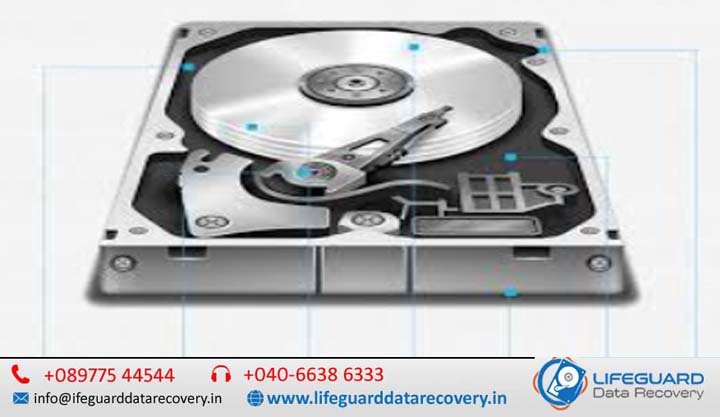
Before diving into symptoms, it helps to understand why hard drives break down. Traditional Hard Disk Drives (HDDs) rely on physical, high-speed moving parts: magnetic platters spinning at thousands of RPMs while read/write heads hover mere nanometers above the surface.
Drive crashes fall into two primary categories:
-
Physical (Mechanical) Failure: Caused by physical shock (dropping a laptop), manufacturing defects, motor degradation, or extreme heat. The mechanical components fail, often resulting in physical platter damage.
-
Logical (Data) Failure: The physical drive is healthy, but the file system structure, master boot record (MBR), or partition table becomes corrupted due to sudden power outages, malware, or improper system shutdowns.
Early Hard Disk Failure Warning Signs (Act Now)
When a drive begins to fail logically or suffer minor mechanical wear, it displays early warning signs. Addressing these signs of hard disk failure early gives you ample time to save your files without specialized equipment.
Frequent System Freezes and Slowdowns
Is your computer taking ten minutes to open a simple folder or lagging when opening small text files? When a hard drive develops bad sectors, the operating system spends extra time attempting to read data from those unstable blocks. If you notice a slow computer due to hard drive activity—and your computer freezes frequently during simple file transfers—your drive is likely struggling to read/write data cleanly.
Unexplained File Corruption and Missing Data
Have you tried opening a document only to receive an error stating the file format is unreadable? Unexplained corrupted files on hard drive sectors are classic hard disk failure warning signs. You may also notice files disappearing unexpectedly or saved folders suddenly appearing empty. This indicates the drive’s file allocation table is degrading.
Increased Bad Sectors During Routine Scans
A “bad sector” is a storage cluster on the hard drive that has become damaged and unusable. While a few bad sectors over several years can be reallocated automatically by the OS, a sudden spike in bad sectors during routine maintenance is a sure sign of progressive physical degradation.
Critical Hard Drive Crash Signs (Imminent Failure)
If your system displays any of these severe hard drive crash signs, your drive is on the verge of complete mechanical failure.
The “Click of Death” and Other Strange Sounds
A healthy hard drive produces a quiet, consistent whirring sound. If you hear a repetitive clicking noise from hard drive hardware, a loud grinding sound, or high-pitched squealing, shut off your PC immediately.
-
The Clicking Sound: Indicates the read/write arm is repeatedly attempting to calibrate but crashing into the drive spindle or boundary stops.
-
Grinding Sounds: Usually means the head is directly scraping against the magnetic platter surface, actively destroying data.
If your hard drive is making strange noises, running software repairs will permanently destroy the platters.
The Blue Screen of Death (BSOD)
While Windows Blue Screens can stem from RAM or driver issues, a persistent blue screen caused by hard drive errors (such as KERNEL_DATA_INPAGE_ERROR or CRITICAL_PROCESS_DIED) strongly points to a failing system drive. This occurs when Windows attempts to access essential system files, but the hard drive fails to read them in time.
Drive Not Recognized by the Operating System
If your internal or external hard drive is not detected in Windows File Explorer or Mac Finder, the controller board or drive spindle may have failed. In severe cases, the drive will fail to register even inside the system BIOS/UEFI screen.
Boot Errors and System Halts
Turning on your PC only to be greeted by a black screen reading Disk Boot Failure - Insert System Disk or No Boot Device Found indicates the operating system won’t boot because the startup sector on your drive has suffered physical or logical collapse.
How to Test for Failing Hard Drive Symptoms
If your computer is still functional, you can verify your drive’s physical health using built-in diagnostic tools.
Checking for a SMART Error on Your Hard Drive
Modern hard drives use S.M.A.R.T. (Self-Monitoring, Analysis, and Reporting Technology) to track health metrics like temperature, reallocated sectors, and read error rates.
To check S.M.A.R.T. status on Windows:
-
Open the Start Menu, search for CMD, right-click, and select Run as Administrator.
-
Type the following command and press Enter:
-
If the result displays OK, your drive has passed basic health checks. If it displays Pred Fail (Predictive Failure), a SMART error hard drive alert is active, and you must back up immediately.
Running Built-in OS Diagnostics (CHKDSK / Disk Utility)
To scan for file system errors and hard drive read/write errors:
-
Windows (CHKDSK): Open Command Prompt as Administrator and run
chkdsk C: /f /r. This checks for logical errors (/f) and locates bad sectors (/r). -
macOS (Disk Utility): Open Disk Utility via Spotlight, select your drive, click First Aid, and hit Run to check for partition mapping errors.
Hard Drive Problems and Solutions: Immediate Steps to Take
When dealing with symptoms of a crashed hard drive, following the correct sequence of steps determines whether you recover your files or lose them permanently.
Step 1: Stop Using the Drive Immediately
If you hear physical clicking or grinding noises, stop using the drive. Continuing to run a mechanically damaged drive causes the head to scratch the magnetic platters, turning your data into physical dust.
Step 2: Attempt a Raw Data Backup (If Accessible)
If the drive is quiet and still accessible:
-
Connect a healthy external hard drive or flash drive.
-
Copy your most critical personal files first (documents, family photos).
-
Avoid running full system image backups or heavy anti-virus scans, as intensive read operations accelerate drive exhaustion.
Step 3: When to Call Professional Data Recovery
If the drive is not detected, clicks loudly, or freezes your PC every time you try to copy a file, software recovery tools will only worsen the damage. In these cases, contact a clean-room data recovery service. They physically open the drive in a sterile environment to replace damaged heads or transfer platters to donor drives.
Prevention: How to Avoid Hard Disk Damage Symptoms in the Future
While mechanical drives inevitably wear out, you can prevent premature hard disk damage symptoms by following these hardware best practices:
-
Follow the 3-2-1 Backup Rule: Keep 3 copies of your data across 2 different media types, with 1 copy stored offsite (cloud storage).
-
Protect Against Power Anomalies: Use an Uninterruptible Power Supply (UPS) or high-quality surge protector to prevent sudden shut-offs that corrupt drive sectors.
-
Maintain Low Temperatures: Ensure proper case ventilation; excessive heat degrades drive lubricant and electronics.
-
Avoid Shock and Vibration: Never move, bump, or shake a laptop or desktop while the hard drive is actively spinning.
Frequently Asked Questions (FAQs)
Can a crashed hard drive be fixed?
A hard drive with physical/mechanical damage cannot be permanently repaired for ongoing use. While data recovery specialists can temporarily extract data from a damaged drive, the drive itself must be replaced once hard disk not working symptoms appear.
What does a failing hard drive sound like?
A failing mechanical drive typically produces rhythmically repetitive clicking (“click of death”), metallic grinding, high-pitched whining, or rapid ticking sounds caused by unstable read/write heads.
How long does a hard drive last before failing?
The average lifespan of a consumer HDD is between 3 to 5 years. Solid-state drives (SSDs) generally last 5 to 10 years depending on the volume of terabytes written (TBW).
Are HDD failure symptoms different from SSD failure symptoms?
Yes. HDD failure symptoms frequently include physical noises (clicking, grinding) and gradual slowness due to bad sectors. SSDs fail silently, often causing abrupt read-only mode locks, boot errors, or total drive non-detection without any physical noise warnings.
Conclusion
Ignoring early failing hard drive symptoms always leads to catastrophic data loss. Whether you notice mild computer slowdowns or severe read/write errors, taking immediate action by backing up your files and running S.M.A.R.T. health checks will keep your valuable data safe. If your drive displays mechanical noises, power it down immediately and consult a professional.