
Accidentally wiping critical files from a USB flash drive can happen in a split second. Whether you clicked delete on a project folder, pulled out the drive while a transfer was active, or encountered an unexpected file system error, learning how to recover deleted file from pen drive storage is essential for getting your documents and media back quickly.
Flash drives do not always erase data permanently the moment you delete a file. By taking the right steps immediately after data loss occurs, you maximize your chances of a complete file restoration.
Understanding Pen Drive Data Recovery: Can Deleted Files Be Restored?
When you delete a file from a removable storage device, the operating system does not immediately write zeros over the physical memory blocks. Instead, the file allocation table (such as FAT32, exFAT, or NTFS) simply marks that specific storage cluster as “available” for future use.
Until new data occupies those marked blocks, the original binary data remains intact on the flash memory chips, making pen drive data recovery and general USB drive data recovery possible.
The Golden Rule of USB Recovery: Stop Writing New Data
To successfully execute USB file recovery after accidental deletion, you must immediately stop using the flash drive:
-
Do not save new files or edit existing documents directly on the pen drive.
-
Do not install recovery applications onto the affected USB drive—always install software on your computer’s main storage drive (e.g.,
C:or Mac HD). -
Unplug the pen drive safely if you are not actively running a recovery process.
Accidental Deletion vs. Formatted vs. Corrupted Drives
The path you take depends on how the data disappeared:
| Data Loss Scenario | Underlying Cause | Success Rate | Primary Recovery Method |
| Accidental Deletion | File pointers removed via OS commands | Very High (90–95%) | Hidden trash folders, CMD, or file carving |
| Drive Reformatting | File system catalog rebuilt; blocks marked clean | High (70–85%) | Deep scan software or winfr extensive mode |
| File System Corruption | Damaged partition boot sectors or RAW status | Moderate (50–70%) | Command-line repairs or byte-level disk imaging |
| Physical Component Failure | Snapped USB stem, damaged NAND controller | Requires Lab Intervention | Cleanroom chip-off hardware recovery |
Common Causes of Data Loss on USB Flash Drives
Understanding why files disappear helps pinpoint the right solution for USB flash drive recovery and prevents future pen drive file recovery emergencies.
Accidental Deletion and Improper Ejection
Human error is the single leading cause of data loss on removable media. Pressing Shift + Delete on Windows or moving files to Trash bypasses standard safety nets on some drive formats. Furthermore, pulling a flash drive out while write operations are running causes corrupted directory structures, leaving users needing to recover files after deleting from USB.
Virus Infections and Hidden File Attributes
Malware frequently targets removable storage devices. Instead of destroying data, USB viruses often run scripts that set file attributes to hidden and system-protected. This creates a situation where you experience deleted files not showing on pen drive storage, even though the drive’s used capacity remains unchanged.
RAW File System Conversion and Bad Sectors
When an operating system can no longer read the master boot record or partition header of a flash drive, it marks the drive as “RAW.” Windows will display prompts stating “You need to format the disk before you can use it.” Formatting wipes directory indexes, requiring specialized tools to recover files from formatted pen drive environments or recover files from corrupted pen drive setups.
Signs Your Pen Drive Files Are Lost vs. Simply Hidden
Before launching intensive scanning software, determine whether your files are actually deleted or merely obscured by system attributes.
Drive Space Is Occupied But Files Are Missing
If you open your USB drive in File Explorer or Finder and see an empty window, check the drive properties. If the used space graph shows several gigabytes occupied, your files are not deleted—they are hidden by malware or operating system errors. In this case, learning how to get back deleted files from USB relies on unhiding file attributes rather than raw data reconstruction.
“Access Denied” or “Drive Needs to Be Formatted” Errors
If double-clicking the drive returns parameter errors or forces a format prompt, the file system metadata is damaged. Do not click “Format.” Formatting adds a layer of file system rebuilding that complicates the process when you attempt to recover lost files from pen drive storage.
Step-by-Step Solutions: How to Recover Deleted Files from USB Drive
Follow these logical, step-by-step methods to recover deleted files from USB drive devices and successfully complete a recover deleted files from pen drive workflow.
Method 1: Check Hidden Folders and the Trash ($RECYCLE.BIN / .Trashes)
While flash drives typically do not use the standard desktop Recycle Bin, operating systems occasionally store deleted items in hidden volume folders depending on how the deletion occurred.
On Windows:
-
Connect your pen drive to the PC.
-
Open File Explorer and click View > Show > Hidden items.
-
Navigate into the root folder of your USB drive and look for a hidden folder named
$RECYCLE.BINorRecycle Bin. -
If present, open the folder to see if your deleted files can be restored.
On macOS:
-
Plug your USB drive into your Mac.
-
Open the mounted USB drive in Finder.
-
Press Command (⌘) + Shift + Period (.) to reveal hidden system files.
-
Open the hidden
.Trashesfolder to inspect deleted files, or check the system Trash while the USB drive remains connected.
Method 2: Unhide Files Using Command Prompt (CMD Attrib Command)
If malware or a script changed your file attributes, command-line tools can instantly restore visibility without third-party software. This is a highly effective method for USB deleted file recovery when files disappear unexpectedly.
-
Press
Win + R, typecmd, and pressCtrl + Shift + Enterto open Command Prompt as an Administrator. -
Identify your USB drive letter in File Explorer (for example,
E:orG:). -
Type the following command (replace
E:with your target drive letter) and hit Enter: -
Wait for the command prompt cursor to return. Check your USB drive folder to confirm if your missing files have reappeared.
Method 3: Use Microsoft’s Free Windows File Recovery Tool
Microsoft provides a native command-line app called Windows File Recovery (winfr) on the Microsoft Store for Windows 10/11. It is designed to recover permanently deleted files from USB storage and formatted drives.
-
Open the Microsoft Store, search for Windows File Recovery, and click Install.
-
Launch Windows File Recovery from the Start Menu.
-
Run
winfrusing the following structure:winfr source-drive: destination-drive: [/mode] [/switches]. -
To scan a FAT32/exFAT USB drive (
E:) and save recovered files to a folder on your main computer (C:), execute: -
Press
Ywhen prompted to start the scan. The utility will reconstruct deleted files into a target recovery directory on driveC:.
Method 4: Recover Lost Files from Pen Drive via macOS Terminal & Disk Utility
If your pen drive displays mounting errors or unreadable partitions on a Mac, use native disk utilities to repair file allocation structures and recover deleted data from USB media.
-
Connect the USB drive and open Disk Utility (
/Applications/Utilities/). -
Select your pen drive from the left sidebar and click First Aid > Run.
-
If First Aid fails to mount the drive, open Terminal and list connected volumes:
Bash
-
Locate your pen drive identifier (e.g.,
/dev/disk2s2). -
Force-mount the volume in read-only mode to extract accessible files safely:
Bash
Method 5: Deep Scan and Restore Using Data Recovery Software
When native operating system tools cannot locate lost partitions, non-destructive data recovery applications scan raw storage sectors to reconstruct file signatures.
-
Download a trusted file recovery app (such as Disk Drill, Recuva, or PhotoRec) and install it on your PC’s internal hard drive.
-
Select your connected pen drive from the target device list.
-
Choose Deep Scan to parse raw memory sectors for lost file signatures.
-
Filter scan results by file extension (
.docx,.png,.mp4). -
Select your target files and choose a recovery destination on your computer’s local drive.
Method 6: When to Contact a Professional Data Recovery Service
If your flash drive is physically broken, submerged in liquid, exhibiting extreme heat, or completely unrecognized at the hardware controller level (0 MB capacity in Disk Management), software recovery will not work. You should contact a specialized cleanroom recovery service to perform hardware repairs or direct NAND chip extraction.
How to Recover Specific File Types from Pen Drives
File carving algorithms handle different file types uniquely during USB flash drive recovery.
Recovering Deleted Photos and Videos (JPG, PNG, MP4)
Media files are particularly prone to fragmentation. When executing steps to recover deleted photos from pen drive or recover deleted photos from USB flash drive media:
-
Filter recovery software by specific graphic signatures (
.JPG,.CR2,.MP4) to speed up raw sector parsing. -
Use tools that support media header reconstruction if video files appear truncated or refuse to play post-recovery.
-
When learning recover deleted videos from pen drive processes, ensure the destination recovery disk has enough free capacity to hold uncompressed video streams.
Recovering Office Documents and PDF Files (DOCX, XLSX, PDF)
Text and document formats carry small memory footprints, making them easier to extract completely during a recover deleted documents from pen drive operation.
-
Search specifically for
.DOCX,.XLSX, and.PDFfile signatures to resolve recover deleted Word files from USB or recover deleted PDF files from pen drive tasks. -
Check temporary system folders on your computer (
%temp%on Windows) for autosaved backup copies if the document was deleted during an active editing session.
Proactive Tips to Prevent USB Flash Drive Data Loss
Preventing data loss requires minimal effort compared to restoring lost partition tables.
Safely Ejecting Media and Avoiding Power Surge Damage
Always use the Safely Remove Hardware option in Windows or the Eject button in macOS Finder before pulling out a pen drive. Unplugging a drive during active background write caching ruins the master file table, leading to unreadable RAW partitions.
Setting Up Automated Backups for Removable Storage
-
Treat flash drives as transit media, not long-term archives.
-
Configure Windows File History or Mac Time Machine to include connected external storage devices.
-
Sync critical work directories automatically using cloud storage applications (OneDrive, Google Drive, or Dropbox) so a local file copy remains safe off-site.
Frequently Asked Questions (FAQs)
Where do deleted files from a pen drive go?
Deleted USB files typically bypass the desktop Recycle Bin or Trash because removable media is treated as external storage. The file data remains stored on the flash drive’s memory sectors, but the operating system removes the file index markers, allowing new data to overwrite that space.
Can I recover deleted files from a pen drive without software?
Yes. You can recover deleted files from USB without software if the files were merely hidden by malware (using the attrib command in Command Prompt), if the drive has hidden system trash directories enabled, or if you use built-in OS tools like Microsoft’s command-line winfr utility.
Is it possible to recover files from a physically broken USB flash drive?
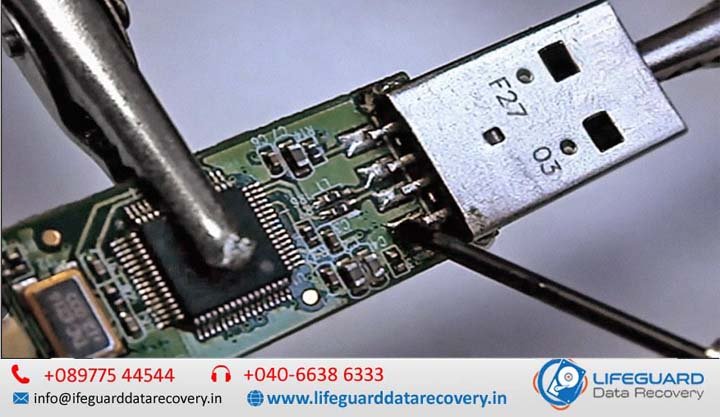
Yes, but not through standard software routines. If the USB connector stem is snapped or the circuit board is cracked, hardware technicians must resolder connection traces or unsolder the NAND memory chip to read the binary data directly using specialized hardware programmers.
If you accidentally delete files from a flash drive, remember that speed and immediate action matter most. Stop writing new data to the drive, run native command-line checks or unhide commands first, and rely on secure recovery software to retrieve your files before overwriting occurs.