
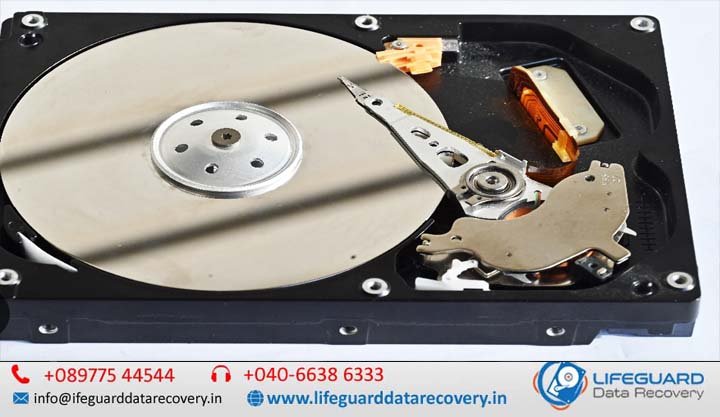
hard disk failing symptoms
Hard drives rarely die without leaving a trail of warnings. Whether you hear an unusual metallic click, notice your system stalling during basic file transfers, or encounter frequent boot errors, identifying hard disk failing symptoms early is the single most critical factor in preventing permanent data loss. Mechanical hard disk drives (HDDs) operate with high-precision moving components-magnetic platters spinning at thousands of RPMs while read/write heads float nanometers above them. When physical components wear down or magnetic surfaces degrade, symptoms escalate rapidly. Knowing how to recognize these warning signs and taking immediate, non-destructive diagnostic action can mean the difference between a complete data restoration and an unrecoverable crash. Understanding HDD Breakdown: Physical vs. Logical Hard Disk Problems Before attempting troubleshooting, you must distinguish between physical hardware failure and logical software corruption. Treating a mechanical failure like a software bug can physically destroy your drive’s platters. Physical (Mechanical) Failure Physical failure occurs when the internal drive components experience physical degradation or damage: Causes: Head crashes, spindle motor seized bearings, printed circuit board (PCB) electrical shorts, or physical platter scratches. Risks: High. Continued power supply to a physically failing drive causes read/write heads to scrape magnetic media off the platters, turning data into unrecoverable dust. Logical File System Corruption Logical failure happens when the drive’s structure or software layer is compromised while the physical drive hardware remains intact: Causes: Malware infections, improper system shutdowns, corrupted master boot record (MBR/GPT) partition tables, or software-based bad sectors. Risks: Moderate. Data can generally be recovered using software utilities, provided no underlying mechanical damage exists. Early Signs of Hard Drive Failure: Catching Problems Early During the initial stage of HDD degradation, the drive’s internal error-correction systems attempt to bypass failing sectors. Pay close attention to these early signs of hard drive failure before catastrophic symptoms manifest. Slow Computer Performance: System file access takes significantly longer than usual. Opening small text documents or folders causes the file explorer to hang or show “Not Responding.” Computer Freezes Frequently: The entire operating system locks up intermittently, especially when searching for files or booting up applications. Files Not Opening & Corrupted Files: Files fail to load, display cryptographic corruption warnings, or disappear entirely from directories. Disk Read Errors: Repeated OS prompts stating that a file cannot be read from the source disk or volume. SMART Warning at Boot: Self-Monitoring, Analysis, and Reporting Technology (S.M.A.R.T.) detects attribute thresholds exceeding safety margins and displays a pre-boot warning. Critical HDD Failure Signs: Imminent Drive Death When failing hard drive symptoms progress to this stage, your drive is near immediate failure. Turn off your computer immediately to prevent further damage. Clicking Noise from Hard Drive: A repetitive “click-pause-click” sound (known as the Click of Death) indicating the read/write heads are failing to calibrate and repeatedly slamming into their limit stops. Hard Drive Making Strange Noises: High-pitched screeching, grinding, or loud humming indicates motor spindle bearing friction or direct contact between the slider heads and magnetic platters. Hard Drive Overheating: Excessive heat radiating from the drive casing, caused by failing spindle bearings or shorted PCB components drawing excess current. Operating System Won’t Boot: Windows or macOS fails to load, throwing continuous BOOTMGR is missing or No Bootable Device screens. Blue Screen Errors (BSOD): System crashes displaying error codes such as KERNEL_DATA_INPAGE_ERROR or CRITICAL_PROCESS_DIED. Drive Not Detected in BIOS: The system motherboard fail to recognize the drive at the hardware controller level during POST startup. Auditory Diagnostic Guide: What Do Hard Drive Noises Mean? Sound is the most direct indicator of mechanical failure. Use this diagnostic table to identify specific physical failures based on drive acoustics: Sound Profile Primary Hardware Cause Immediate Hazard Level Recommended Action Repetitive Clicking Head assembly failure, preamp failure on PCB CRITICAL Power down instantly. Do not run software diagnostics. Grinding / Scraping Read/write heads physically contacting magnetic platters CATASTROPHIC Permanent data destruction occurring. Cut power immediately. High-Pitched Beeping Spindle motor stiction (heads stuck directly to platter surface) HIGH Drive cannot spin up. Requires cleanroom head un-sticking. Loud Whining / Buzzing Seized motor bearings or spindle imbalance HIGH Do not attempt to force rotation. Professional recovery required. How to Tell If a Hard Drive Is Failing: Safe Diagnostics & Health Checks When performing a failing hard disk diagnosis, safety is paramount. Running aggressive diagnostic utilities on a weak drive can accelerate its failure. 1. Perform a Non-Destructive Native S.M.A.R.T. Check Query the drive’s built-in self-monitoring attributes using native read-only command-line interfaces. On Windows (PowerShell): PowerShell On macOS (Terminal): Bash If the result displays Failing or Verified with Errors, the drive needs immediate replacement. Critical S.M.A.R.T. Raw Values to Monitor Using detailed diagnostic tools (such as Smart montools or Crystal DiskInfo), check these specific raw attributes: Attribute 05 (Reallocated Sectors Count): Indicates physical bad sectors that were remapped to spare sectors. Any non-zero value that continually increases means active platter degradation. Attribute 197 (Current Pending Sector Count): Unstable sectors waiting to be remapped due to read errors. Attribute 198 (Offline Uncorrectable Sector Count): Unrecoverable read errors when accessing sectors-a strong indicator of mechanical wear. What to Do When Your Hard Drive Is Dying: Step-by-Step Action Plan Enforce the Immediate Power-Down Rule: If the drive is clicking, grinding, or unreadable, shut off power. Do not attempt to restart the computer. Prioritize Critical Files (Read-Only Copy): If the drive still boots silently, copy your most critical files (documents, photos, credentials) first. Do not attempt full system backups or large folder transfers that cause sustained high disk usage. Isolate External Factors: If an external drive fails, test a different USB cable, port, and computer enclosure to ensure the issue is not caused by a faulty bridge board or poor power delivery. Consult Professional Recovery Services: If the drive is not recognized by BIOS or makes strange mechanical noises, contact a specialized hard drive data recovery service rather than using commercial recovery software. Preventive Measures for Long-Term Hard Drive Health Implement the 3-2-1 Backup Strategy: Maintain 3 total copies of your data across 2 different storage