Life Guard

Life Guard

What causes external hard drives to disconnect?

We’ve all been there: you’re in the middle of a massive file transfer or working directly off your storage drive when suddenly, you hear that dreaded system notification sound. A window pops up warning you that the device was not ejected properly, and your progress vanishes. When your external hard drive is disconnecting randomly, it’s more than just an annoyance-it places your valuable files, photos, and system backups at risk of permanent corruption. Fortunately, this is a highly fixable issue. In this comprehensive guide, we will break down what causes external hard drives to disconnect, teach you how to isolate hardware vs. software bugs and provide step-by-step solutions for both Windows and macOS. The Root Causes: Why Does My External Hard Drive Disconnect? Understanding why your external hard drive disconnects is the first step toward a permanent fix. These interruptions usually stem from one of five primary physical or logical issues: 1. Unstable or Insufficient Power Supply (Bus Power vs. Wall Power) Many portable hard drive connection issues stem from basic physics. Portable 2.5″ mechanical drives and external SSDs are “bus-powered,” meaning they draw electricity directly from your computer’s USB port. A standard USB 2.0 port maxes out at 500mA, while USB 3.0 provides up to 900mA. If your computer’s port fails to sustain this current, or if you are running several power-hungry peripherals at once, the drive controller will suddenly reset, triggering a disconnection. 2. Faulty, Loose, or Degraded USB Cables & Ports A faulty USB cable can absolutely cause an external hard drive to disconnect. USB cables undergo constant bending and pulling, which creates micro-fractures in the delicate internal copper wiring. The cable might still carry enough power to illuminate the drive’s LED status light, but it will fail under the heavy data load required during read/write cycles. Similarly, physical dust accumulation or loose connector solder joints inside the laptop port itself can break connections upon the slightest physical movement. 3. Aggressive OS Power Management Settings Both Windows and macOS contain built-in energy-conservation protocols. While well-intentioned, power-saving features can mistakenly identify your connected external storage device as “inactive”. The operating system cuts or drops voltage to the USB port to save battery, forcing a hard disconnect while files are still technically open. 4. USB Controller and Driver Conflicts If your external HDD is disconnecting on Windows or Mac, the software driver acting as the translator between your motherboard and the drive may be corrupted, outdated, or glitched. System updates can sometimes break these handshakes, causing the USB host controller to randomly drop active connections. 5. Hard Drive Thermal Throttling & Internal Sector Damage Can overheating cause an external hard drive to disconnect? Yes. Modern high-speed NV Me external SSDs generate a massive amount of heat under continuous use. To prevent physical silicon degradation, the built-in controller chip will trigger a hard thermal shutdown if temperatures spike past safe operating limits. On older mechanical HDDs, physical wear, bad sectors, or failing internal write-heads can cause the drive’s firmware to crash and drop offline. Why Does My External Hard Drive Disconnect During File Transfer? One of the most common complaints is a USB external drive that keeps disconnecting specifically during active file transfers. This occurs due to two main technical reasons: Power Draw Spikes: When an external mechanical hard drive is idling, its power consumption is low. However, when you start transferring a large folder, the drive’s internal platters must spin up to maximum RPM, and the write heads must move rapidly. This sudden spike in activity demands maximum electrical current. If your USB port or cable cannot support this peak draw, the connection collapses instantly. Write-Cache Exhaustion: Cheap external hard drive bridge chips can suffer from buffer overflows when continuous streams of data saturate the controller. When the controller hangs, the operating system times out the connection, believing the device has been unplugged. Rule Out Hardware Issues (Quick Diagnostics) Before tweaking complex operating system settings, always perform these basic hardware triage steps first: 1. Swap the Cable and the Port Do not assume your current cable is fine because it worked yesterday. Swap it out for a high-quality, double-shielded, USB-IF certified cable. Additionally, move the connection to a different port on your machine. On desktop computers, always use the rear ports directly on the motherboard rather than the front-panel ports, as the rear ports provide more stable current. 2. Bypass Unpowered USB Hubs Unpowered, passive USB hubs split a single port’s limited $500\text{mA}$ or $900\text{mA}$ power supply across multiple connected devices. If you must use a hub, always use a powered USB hub that plugs directly into a wall outlet to guarantee dedicated power to your drive. 3. Test on Another Computer Connect the drive to a completely different computer (ideally running a different operating system). If the drive still disconnects, the problem lies within the drive’s cable, power supply, or internal hardware. If the drive stays connected and works perfectly, the issue is a software setting, power configuration, or driver conflict on your primary computer. How to Fix External Hard Drive Disconnecting on Windows If you have confirmed your hardware is healthy, follow these targeted steps to resolve software-based connection drops on Windows 10 or Windows 11. 1. Disable USB Selective Suspend in Power Options “USB Selective Suspend” is a feature designed to save battery by putting individual USB ports into a low-power state when Windows thinks they are idle. Disabling this is the single most effective fix for Windows users. 1.Open Control Panel: Step 1. Press the Windows Key + R, type control, and hit Enter. Set the “View by” option in the top right to Large Icons. 2.Navigate to Power Settings: Step 2. Click on Power Options. Next to your active power plan, click Change plan settings. 3.Access Advanced Power Settings: Step 3. Click on Change advanced power settings. A new window will pop up. 4.Disable USB Selective Suspend: Step 4. Scroll down and expand USB settings, then expand USB selective suspend setting. Change the settings for both On

Life Guard

Can Overheating Destroy Hard Drives?

When your computer begins to heat up during heavy workloads, your attention likely turns to your processor or graphics card. However, there is a much more sensitive component silently enduring that thermal stress: your mechanical hard disk drive (HDD). Unlike modern solid-state storage, an HDD relies on ultra-precise mechanical alignment. When temperatures spike out of control, these moving parts face severe structural risks. So, can overheating destroy hard drives? Yes, sustained high heat can permanently destroy hard drives through physical mechanical warping, head crashes, and electronic component failure. In this comprehensive guide, we will analyze the physical mechanics behind thermal hard drive degradation, the early warning symptoms of an overheating drive, and actionable steps to safely cool down your hardware before permanent data loss sets in. What Happens When a Hard Drive Overheats? (The Physics of Heat Damage) Most major manufacturers, including Western Digital and Seagate, design standard consumer hard drives to operate within a nominal window. When internal components push past this maximum threshold, the underlying physical laws governing data storage begin to work against you. The Mechanics of Drive Expansion: How Does Heat Affect Hard Drives? Inside an HDD, magnetic platters spin at speeds typically ranging from 5,400 to 7,200 RPM (rotations per minute). Read/write heads glide over these platters to access your data. When ambient internal temperatures spike, the physical air density changes inside the drive casing. Because these heads rely on a precise cushion of air to stay suspended, thin air alters their physics, forcing them dangerously close to the delicate storage media below. Head Crashes and Microscopic Surface Scoring: Does Overheating Damage HDD Permanently? Hard drives are constructed using a mix of aluminum-magnesium alloy platters (or glass substrates on high-density models), steel casings, and copper components. Each material expands at a different rate under thermal stress-a process known as differential thermal expansion. As the drive overheats, the read/write head assembly expands, shrinking the “fly height” (the physical gap between the head slider and the spinning platter) down from its microscopic standard of just a few nanometers. If the gap closes entirely, a head crash occurs. The ceramic slider physically gouges the magnetic recording layer, turning your data into microscopic dust and causing permanent, irreversible physical damage to the drive. Magnetic Destabilization: Can Heat Corrupt Data on a Hard Drive? HDD platters retain binary data using microscopic magnetic fields. Every magnetic material possesses a unique thermodynamic threshold called the Curie temperature-the exact point at which a material completely loses its permanent magnetic properties. While a home or office computer won’t reach true Curie thresholds (which are hundreds of degrees Celsius) unless exposed to a literal building fire, prolonged exposure to severe operating heat destabilizes the magnetic coercivity of individual data sectors. This instability triggers bit rot and unreadable blocks, leading to widespread, catastrophic data corruption long before the physical metal melts. Common Reasons for Hard Drive Thermal Failure Hard drive overheating is rarely caused by a single issue; it is typically the result of structural bottlenecks within your computing environment. Airflow Choke Points: Does Poor Airflow Damage Hard Drives? Computer cases rely on continuous positive or negative pressure to pull cool air in and exhaust hot component exhaust out. If intake zones are blocked by walls, desks, or cramped internal cable routing, stagnant hot pockets form. Hard drive cages are frequently located at the front bottom of a chassis-directly in the path of intake air. If that fresh air path is choked, the drive’s self-generated friction heat cannot dissipate. Thermal Insulation Layers: Can Dust Cause Hard Drive Overheating? Dust acts as an incredibly efficient thermal blanket. Inside a PC or storage enclosure, static electricity attracts fine debris that coats the hard drive’s outer metal casing and its exposed Printed Circuit Board (PCB). This layer of fine sediment seals the heat in, turning a minor airflow problem into an insulated thermal trap that bakes the controller chips. Seasonal Risks: Does Room Temperature Affect Hard Drive Performance? Your system’s cooling efficiency is entirely bound to its ambient environment. If a room has no air conditioning during peak summer heat, the baseline temperature entering the intake fans rises significantly. Data center tracking logs indicate that while high-quality enterprise drives manage heat well within controlled parameters, consumer-grade models show a distinct statistical increase in localized tracking errors and sector reallocations when ambient room temperatures spike over sustained periods. Signs Your Hard Drive Is Overheating: Tracking Early Warning Symptoms Recognizing thermal damage early can mean the difference between a simple system cleanup and a costly trip to a professional recovery lab. Latency Spikes and ECC Retries: Can Overheating Slow Down Hard Drive Performance? Yes, thermal issues degrade system speeds. When an HDD overheats, internal components warp slightly, causing the read/write head to lose its alignment tracking with the data tracks. The drive’s firmware reacts by initiating thousands of invisible internal read/write retries (Error Correction Code loops) to verify the data. This background processing loop introduces severe latency, manifesting to you as sudden file transfer stalls, long application loading windows, and an unresponsive operating system. Hardware Flags: System Freezes, S.M.A.R.T. Alerts, and Abnormal Clicking Sounds If thermal degradation crosses a critical line, you will observe clear physical warning flags: S.M.A.R.T. Alert Warnings: Storage utility programs will flag Attribute 05 (Reallocated Sectors Count) or Attribute BE (Airflow Temperature), notifying you that the drive has surpassed safe operating bounds. The “Click of Death”: If heat causes the pre-amplifier chip on the head stack to malfunction, the drive will lose its orientation entirely. The actuator arm will rapidly sweep back and forth against its mechanical limiter trying to find its missing tracking data, producing a distinct, rhythmic clicking sound. Hard Drive Overheating Troubleshooting Guide: What to Do If Your Drive Gets Too Hot If your software alerts indicate your storage hardware has exceeded, implement this emergency triage process immediately. Step 1: Immediate Structural Safe-Shutdown Actions Do not try to complete non-essential file transfers or run heavy diagnostic scans while the drive is blistering hot. Turn off

Life Guard

How Recovery Engineers Repair Damaged Storage

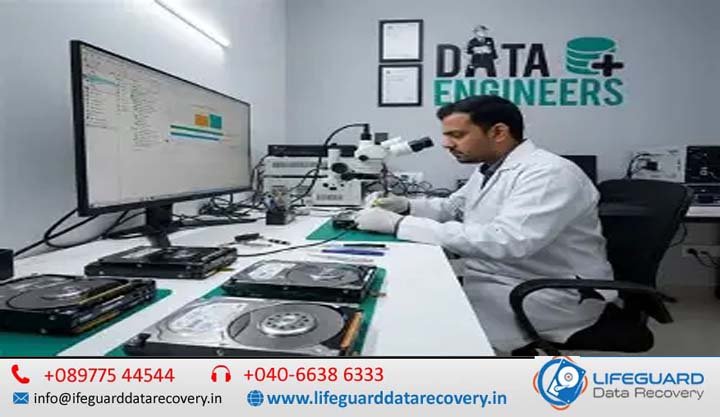
How Recovery Engineers Repair Damaged Storage.When a storage drive stops responding, the immediate human reaction is panic. The spreadsheet containing years of financial bookkeeping, an unbacked-up photo library, or critical enterprise databases vanish into a black screen. While consumer software tools promise quick fixes, severe storage device hardware failures require an entirely different level of intervention. This deep dive pulls back the curtain on data recovery engineering techniques. You will learn the exact micro-surgery, electrical bypassing, and forensic software engineering that professional labs use to extract data from seemingly destroyed media. Physical vs. Logical Failure: The First Diagnostic Crossroads Before an engineer turns on a single soldering iron or opens a drive casing, they must determine the exact nature of the failure. Treating a physical hardware breakdown with logical software tools can permanently destroy data. Logical Damage: Software, Corruption, and File Systems Logical failure means the drive’s physical components work perfectly, but the data structures are compromised. This involves scrambled file systems (like NTFS, APFS, or ext4), accidental partition formatting, malware encryption, or partial file overwrites. In these scenarios, the drive reads and writes normally, but the operating system cannot locate the index markers required to piece files together. Physical Damage: Mechanical Breakdown and Circuit Failures Physical damage occurs when the hardware itself fails. This is a destructive state where physical components inside the drive break, warp, or burn out. Examples include a dropped external drive with broken internal components, a solid-state drive with a blown voltage regulator, or media degraded by water or fire. Hard drive diagnostics and repair protocols dictate that a physically compromised device must never be powered on standard computer hardware, as doing so can cause permanent data obliteration. The Data Recovery Laboratory Process: Diagnostics Under the Microscope A reputable data recovery laboratory process follows strict forensic protocols to prevent secondary damage during evaluation. Inside the Cleanroom: Why ISO Certified Environments Matter When mechanical storage devices need to be opened, engineers work within a certified data recovery clean room. These environments are strictly rated under ISO 14644-1 standards. Industry leaders operate ISO Class 5 Cleanrooms, which allow fewer than 3,520 microscopic particles (0.5 micrometers or larger) per cubic meter of air. Can damaged storage devices be repaired safely outside these environments? Absolutely not. A standard room contains millions of floating dust, skin, and fabric particles. If a single dust particle settles on a magnetic hard drive platter, the flying read/write head (which hovers a mere 5 nanometers above the surface) will hit it. This creates a head crash, scraping the magnetic coating off the platter and destroying the data forever. The Mechanical Storage Device Repair Process (HDD) Mechanical hard disk drives (HDDs) are marvels of high-speed micro-mechanics. When they suffer physical failure, recovery engineers perform microscopic repairs to temporarily stabilize the drive. Replacing Damaged Read/Write Head Assemblies The read/write heads are the tiny electromagnets responsible for reading data off the spinning platters. If a drive is dropped or suffers a power surge, these heads can bend, snap, or “clamp” onto the platter surface (stiction). To fix this, engineers source an identical “donor drive”-matching not just the model, but the specific manufacture date, factory site, and pre-amp chip revision. Using specialized precision tools called head replacement combs, the engineer slides the damaged head stack out and installs the donor assembly without allowing the fragile heads to touch one another or scratch the platters. Platter Transplants and Motor Failures Inside the HDD, a precision spindle motor spins the platters at speeds up to 15,000 RPM. If the bearings seize or the motor burns out, the platters cannot turn. Engineers resolve this by executing a platter transplant. Using a mechanical alignment jig, they extract the stack of magnetic discs simultaneously, maintaining their exact microscopic alignment relative to one another, and transfer them into a healthy donor drive chassis. How Recovery Engineers Repair Hard Drive Electronics A common point of failure is the Printed Circuit Board (PCB) bolted to the bottom of the drive. While old hard drives allowed you to simply swap a broken PCB with a working one, modern storage media recovery services face a much tougher hurdle. Every modern drive feature unique adaptive calibration data stored on an EEPROM chip (or integrated into the main MCU) on the PCB. This chip contains precise alignment values unique to that single drive’s physical tolerances. How PCB repair helps recover lost data involves desoldering this adaptive chip from the damaged board and micro-soldering it onto a compatible donor PCB. Without this specific chip transfer, a donor board will cause the drive to click and fail to initialize. The Modern SSD Data Recovery Process Solid-state drives (SSDs) contain no moving parts, meaning they do not require a cleanroom environment. However, the SSD data recovery process presents a highly complex electrical and mathematical challenge. Bypassing Controller Failure via Chip-Off Techniques The most common hardware vulnerability in an SSD is a failed Silicon Motion, Phison, or proprietary controller chip, or a shorted Power Management Integrated Circuit (PMIC). When the controller dies, the drive turns into a “brick” and cannot communicate with a computer. To bypass this, engineers utilize an invasive data recovery engineering technique known as Chip-Off recovery. Engineers place the SSD on a professional infrared rework station, carefully heating the board to de-solder the individual NAND flash memory chips. Reconstructing Controller Algorithms and Wear Leveling Reading the raw chips is only the first step. The data inside NAND flash chips is completely scrambled. To extend the life of an SSD, the controller uses a Flash Translation Layer (FTL) to constantly scatter data blocks across different chips, alongside complex Error Correction Code (ECC) calculations and XOR encryption algorithms. Because there is no hardware controller to piece these blocks together, the recovery engineer must use specialized data recovery engineering tools (like the PC-3000 SSD framework) to reverse-engineer the original controller’s proprietary wear-leveling algorithms. They build a virtual controller in software to map the scattered blocks back into a readable, unfragmented disk image. Advanced

Life Guard

Can NVMe SSDs Be Recovered Successfully

If your computer suddenly boots into a blank blue screen or your high-speed drive stops showing up in the BIOS, panic is a completely natural reaction. Lifeguard Data Recovery is there to help you for Losing family photos, critical databases, or weeks of work feels like a gut punch. The immediate question keeping you awake is: Can NV Me SSDs be recovered successfully? The quick answer is yes-but with a massive asterisk. Unlike older mechanical hard drives, NV Me solid-state drives rely on complex flash architecture and automated self-maintenance protocols that actively destroy deleted data within minutes. Your absolute best chance at a successful data recovery depends entirely on what you do-or stop doing-right now. What is an NV Me SSD and How Does It Store Data? To understand how data recovery works, you first need to look at what is happening under the hood of your storage hardware. Non-Volatile Memory Express (NV Me) is a protocol designed specifically for solid-state storage to communicate directly with a computer’s motherboard via PCIe (Peripheral Component Interconnect Express) lanes. Unlike traditional hard drives that store data magnetically on spinning platters, an NV Me SSD stores data using NAND flash memory. The Architecture: Your drive contains millions of tiny, microscopic structures called floating gate transistors or charge trap cells. The Mechanism: Data is written by trapping electrons within these cells to alter their electrical voltage. The drive reads these electronic states as binary code (1s and 0s). Because it has no moving parts, it can achieve read and write speeds that exceed 7,000 megabytes per second. How NV Me SSD Data Recovery Works (And How It Differs From SATA) Understanding how NV Me SSD data recovery works means recognizing how vastly different solid-state media is from old-school mechanical drives. When you delete a file from a traditional hard disk drive (HDD), the data stays completely intact on the physical platter. The operating system simply marks that space as “available.” It remains fully recoverable until a new file explicitly overwrites that exact physical cluster. Solid-state media operates under an entirely different set of physics: The Page vs. Block Problem: In an NV Me SSD, data can be read and written at the page level (usually 4KB to 16KB sections). However, data can only be erased at the larger block level (comprising 128 to 512 pages). The Overwrite Limitation: NAND flash memory cannot overwrite existing data. If an application alters a file, the drive’s internal Flash Translation Layer (FTL) maps the new data to an entirely fresh, empty page. It then marks the old page as “invalid” or “stale.” Because of this unique parallel structural behavior, recovering data from a dead or corrupted NV Me drive requires specialized hardware that can manually bypass the FTL map to read the raw electrical states directly from the underlying flash chips. Why NV Me SSDs Fail Unexpectedly: What Causes Data Loss? Because they lack mechanical motors, many users believe solid-state storage lasts forever. Understanding what causes NV, Me SSD data loss helps isolate whether your drive is suffering from a logical issue or terminal physical hardware breakdown. What is Logical Failure in an NV Me SSD? Logical failure occurs when the physical drive hardware and its controller chip are completely healthy, but the data structure inside has broken down. This includes scenarios like accidental partitioning, partition table corruption, malware damage, or severe operating system crashes. In these instances, the physical bits remain on the NAND cells, making logical data recovery highly probable if caught early. What is Physical Failure in an NV Me SSD? Physical failure means the physical components on the M.2 circuit board have broken or degraded. This includes: NAND Cell Wear: Flash memory cells can only endure a finite number of Program/Erase (P/E) cycles before they lose their ability to reliably hold an electrical charge. Controller Failure: The controller chip acts as the CPU of your SSD. If it overheats or fails due to a manufacturing defect, the drive becomes a brick. Component Damage: Capable of being caused by severe thermal stress or drops, breaking microscopic traces or fracturing surface-mounted resistors. The Impact of Power Surges and Firmware Corruption Two under-the-radar culprits cause a significant portion of unexpected solid-state drive fatalities: Power Surges: Modern NV Me drives operate on fine voltage tolerances. A sudden power loss or voltage spike can instantly fry the drive’s controller or corrupt the volatile DRAM cache memory, leading to catastrophic data loss. Firmware Corruption: The internal microcode governing the drive can become unstable. When firmware corruption strikes, the drive can no longer boot its internal operating system, causing it to freeze entirely during initialization. Red Alert: Crucial NV Me SSD Failure Symptoms to Watch For Recognizing NV Me SSD failure symptoms early can mean the difference between saving your portfolio or losing it forever. If you notice any of these warnings, drop everything and back up your system immediately. Frequent Blue Screens (BSODs): Regular crashes pointing to errors often mean the OS is failing to read files from a degrading storage block. Files Suddenly Become Read-Only: When an SSD controller realizes its NAND chips are experiencing widespread physical failure, it will lock the drive into a permanent “Read-Only” mode to protect your files. If you can’t save a document, your drive is likely dying. Sluggish Performance & Freezes: Opening small files shouldn’t cause your system to freeze for 30 seconds. This happens when the drive is caught in an endless loop attempting to parse unreadable bad blocks. Why is an NV Me SSD Not Detected by the Computer? The ultimate symptom of a dead drive occurs when it fails to appear in Windows Disk Management or your motherboard’s BIOS configuration. When an NV Me SSD is not detected by the computer, it usually indicates that the controller chip has experienced complete hardware failure or its master boot sector firmware area is deeply corrupted. At this stage, standard software fixes will not help. Reality Check: What is the Real NV Me SSD Recovery Success Rate?

Life Guard

What Causes Bad Sectors on HDDs?

Imagine driving down a smooth highway, only to suddenly hit a deep pothole that jolts your vehicle. In the world of data storage, a bad sector is that exact pothole on your hard drive’s magnetic highway. When your computer drops in performance, drops random error messages, or hits a Blue Screen of Death (BSOD), it is often encountering a block of space that refuses to communicate. If you suspect your storage is degrading or need emergency data restoration, a professional hard drive data recovery service can safely salvage vital files from compromised sectors. This guide uncovers the underlying causes of HDD bad sectors, contrasts physical vs. logical damage, outlines indicators of impending drive failure, and shows you how to protect your storage investment. Hard Drive Bad Sectors Explained: What Are They? Every mechanical Hard Disk Drive (HDD) organizes data onto flat, circular magnetic platters. These platters are divided into concentric rings called tracks, which are segmented into smaller blocks known as sectors. Traditionally sized at 512 bytes (or 4 KiB in modern Advanced Format drives), a sector is the smallest addressable unit of data on your storage device. A bad sector occurs when a specific storage block becomes permanently or temporarily unreadable. The hard drive’s internal error-correcting code (ECC) can no longer verify or retrieve data from that space. When this happens, any files resting on that specific patch of the platter become corrupted or entirely inaccessible to the operating system. How Your Drive Maps Data Across Sectors To understand structural decline, look at how data maps to the drive’s physical layout. Healthy sectors respond to read/write commands instantaneously. When a sector experiences structural breakdown, magnetic decay, or geometric distortion, it stops reporting back to the drive’s controller unit. Physical vs Logical Bad Sectors: The Two Crucial Categories Not all bad sectors are created equal. Storage errors fall into two distinct buckets based on whether the fundamental issue stems from mechanical hardware damage or software discrepancies. Hard Bad Sectors (Physical Damage) A hard bad sector is a cluster of storage that has suffered physical, irreversible hardware damage. Once a sector is physically gouged, scratched, or de-magnetized, it cannot store data again. This type of damage occurs on the physical surface of the platter and is completely permanent. Visualizing Mechanical Clearance and Head Crashes Mechanical hard drives operate with microscopic tolerances. The read/write head floats on a thin cushion of air just nanometers above the rapidly spinning platter. To put this in perspective, a single human hair, a fingerprint smudge, or even a microscopic particle of smoke is massive compared to that clearance gap. If a shock or containment breach occurs, the head collides directly with the platter-a catastrophic event known as a head crash-scraping away the delicate magnetic coating. Soft Bad Sectors (Logical Errors) A soft bad sector is a software-level issue. This occurs when the operating system attempts to read data from a sector and finds that the Error Correction Code (ECC) does not match the actual data payload contained within the sector. Technical Breakdown: What Causes Bad Sectors on HDDs? Understanding how bad sectors form is essential for proper drive care. These anomalies are classified as primary defects (present right out of the factory) or grown defects (developing over time during daily operation). Mechanical Wear and Thermal Stress: Hard drives are mechanical systems with spinning motors and moving arms. Over years of extended operation, the constant friction and thermal cycles (expansion and contraction from heat) degrade the platter’s magnetic coating and wear down structural components. Physical Shock and Vibration: Dropping a laptop, bumping an external desktop enclosure while it’s actively writing, or exposing a server array to intense ambient vibrations can trigger head crashes. The physical impact gouges the platter surface, creating instantaneous hard bad sectors and loose debris. Sudden Power Disruptions: A sudden blackout or pulling the power cord mid-write leaves a sector half-updated. Because the write cycle was interrupted, the mathematical checksum fails on the next read attempt, spawning a logical, bad sector. Environmental Contamination: While HDDs are tightly sealed, they are not completely hermetic; they utilize precise breathing filters to equalize internal air pressure. Over several years, microscopic airborne dust or humidity can breach these barriers, accelerate localized platter corrosion or cause friction under the head assembly. Hard Drive Failure Indicators: Recognizing the Signs of Bad Sectors Bad sectors often start small and expand gradually. Keep an eye out for these warning signs to intercept a dying drive before complete data loss occurs: Sluggish Performance & Freezes: If your system randomly locks up or crawls to a standstill when opening specific folders, it may be struggling through hundreds of internal read retries on a failing block. The Blue Screen of Death (BSOD): When vital operating system files land on sectors that suddenly go dark, the computer crashes with critical boot or system file read exceptions. Cryptic Error Messages: Random pop-ups like “File Path Not Found” or “Cyclic Redundancy Check (CRC) Error” indicate your OS encountered a sector with a broken ECC signature. The “Click of Death”: If you hear rhythmic clicking, ticking, or whining sounds, the read/write actuator arm is physically hunting for a missing calibration track, indicating severe structural failure. HDD Error Detection: How to Identify Bad Sectors If your system is acting up, you can audit your hard drive’s structural health using native and specialized tools. 1. Interpreting S.M.A.R.T. Attributes Every modern HDD runs Self-Monitoring, Analysis, and Reporting Technology (S.M.A.R.T.). To assess health, keep an eye on three diagnostic attributes using tools like Crystal Disk Info (Windows) or smart Mon tools (Linux): Attribute 05 (Reallocated Sectors Count): Shows the number of damaged sectors the drive has actively retired and replaced using spare storage blocks. Attribute C5 (Current Pending Sector Count): Displays unstable sectors currently waiting for a write attempt to verify if they are physically or logically broken. Attribute C6 (Offline Uncorrectable Sector Count): The number of unfixable sectors that can no longer be addressed by internal error correction. 2. Running Native

Life Guard

Why Do SSDs Fail Without Warning?

We have all been conditioned to look for the warning signs of a dying storage drive: the ominous clicking of a hard drive platter, the grinding of bearings, or a sudden, dramatic system slowdown. Solid-State Drives (SSDs) are universally praised for eliminating these mechanical vulnerabilities. Because they have no moving parts, we often assume they are immune to sudden catastrophic failure. However, that lack of physical moving parts is exactly why do SSDs fail without warning? When a traditional Hard Disk Drive (HDD) degrades, it gives you physical clues. When an SSD fails, it is usually a silent, instantaneous electronic event that transforms a high-speed storage device into a non-responsive brick in microseconds. In this comprehensive guide, you will learn the actual electronics behind why an SSD suddenly stops working, how to decode hidden early warning indicators that bypass basic operating system checks, and the step-by-step diagnostic actions to take if your drive suddenly drops off the radar. The Core Difference: SSD Lifespan Explained To understand why solid-state tech goes dark without a sound, we have to look closely at SSD storage technology. Unlike hard drives that use magnetic heads to read spinning platters, an SSD operates entirely on silicon chips. It is a highly complex embedded micro-system that relies on a symbiotic relationship between raw flash hardware and low-level engineering logic. Understanding NAND Flash Memory Wear At the microscopic level, your files are saved across clusters of NAND flash memory. NAND chips store data by trapping electrons inside microscopic floating gate transistors. Every time you write, modify, or erase data, the drive must apply an electrical voltage pulse (often between +15V and +20V) to force electrons through a thin insulating layer called the tunnel oxide layer. Over thousands of execution cycles, this intense electrical stress creates microscopic physical fractures in the oxide insulator. Eventually, the insulation degrades to the point where the cell can no longer reliably isolate or hold an electrical charge. This natural degradation process is known as NAND flash memory wear. While modern 3D NAND technology mitigates this by stacking cells vertically to balance storage efficiency, every solid-state drive is bound to a strict physical limitation: what happens when an SSD reaches its lifespan? Once those cell walls disintegrate entirely, the drive loses its ability to cycle data. Why Do SSDs Suddenly Stop Working? The 3 Major Causes If NAND flash wear is a slow, trackable process, what causes SSDs to fail unexpectedly long before their rated lifespan is reached? Total, instantaneous failure usually boils down to three primary electronic and structural culprits. 1. SSD Controller Failure and Voltage Spikes If NAND flash chips are the filing cabinets where your data resides, the SSD controller failure is the catastrophic loss of the office manager. The controller is a specialized microprocessor responsible for critical management operations, including: Managing the Flash Translation Layer (FTL) mapping matrix Balancing cellular wear-leveling algorithms Handling real-time Error Correction Code (ECC) scanning Because the controller handles the heavy electrical shifting across the drive, it is exceptionally vulnerable to voltage fluctuations. A minor power surge, an under-powered or erratic Power Supply Unit (PSU), or an unexpected black-out can short-circuit the controller IC (Integrated Circuit). When the controller dies, the underlying NAND flash data chips are usually completely pristine, but your computer can no longer speak to them. The drive becomes instantly dead and undetectable. 2. Bricked Firmware and Software Corruption An SSD runs on an internal, deeply complex embedded operating system known as firmware. It controls how the drive boots, processes system commands, and executes garbage collection. Can SSD firmware become corrupted? Yes, and it happens more often than structural wear. If your system loses power while the controller is writing system metadata or updating its location tables, the firmware can easily scramble its own operating code. When this happens, the controller triggers a defensive “panic state.” Instead of loading normally during your next boot sequence, it falls back into a hardcoded safe mode identity. This causes severe SSD firmware problems where the drive refuses to announce itself to your computer’s motherboard or populates under a generic factory fallback code like “SATAFIRM S11” with a capacity reading of exactly 0 GB. 3. Severe Thermal Throttling and Heat Damage Modern high-speed NV Me M.2 SSDs transfer enormous volumes of data over compact surface areas, generating significant thermal output. While drives are engineered to execute safety protocols when temperatures spike, prolonged exposure to extreme heat can gradually weaken the physical surface-mount solder joints connecting the controller to the circuit board. Over time, thermal expansion and contraction break these microscopic paths, causing an instant, permanent structural disconnect. Can SSDs Fail Without Any Warning Signs? The short answer is yes. Because solid-state devices lack a mechanical arm or spin motor, they do not produce physical indicators of degradation. An SSD can be reading data perfectly at 5,000 MB/s, hit a fatally corrupted piece of core firmware metadata on the next command line, and instantly lock up forever. Unlike a mechanical drive that may give you weeks of audible warning as a bearing fails, an electronic failure is binary: it is either functional, or it is broken. This makes a strict regimen of automated data safety and system mapping essential. If you want to protect your digital assets before an unexpected hardware failure occurs, implementing a reliable Data Backup Solution is your single best defense against data loss. Crucial SSD Failure Symptoms to Watch Out For While a catastrophic controller short leaves no trail, many solid-state drives undergo a period of logical distress before failing completely. If you spot any of the following SSD failure symptoms, your drive is actively sending up a digital flare. Frequent Blue Screens (BSOD) and Kernel Panics If your system crashes out into a Blue Screen of Death (or a Kernel Panic on macOS) whenever you attempt to launch specific applications or open large folders, your drive may be hitting bad blocks. When the operating system requests data from a dead sector and

Life Guard

Can clicking hard drives still be repaired

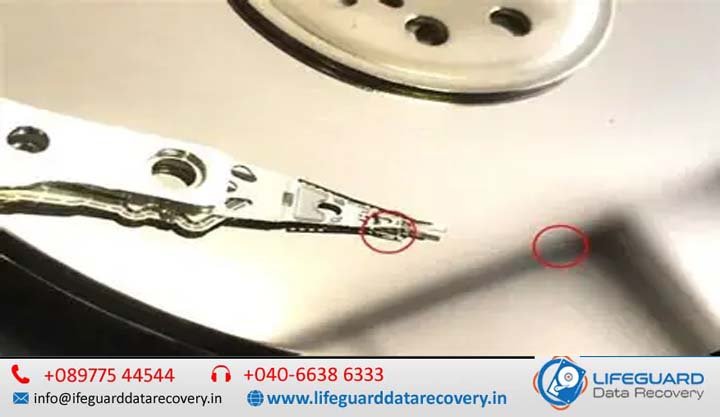
If your hard drive has suddenly started making a rhythmic, repetitive ticking or clicking noise, it is completely natural to panic. This sound-affectionately known in IT circles as the “Click of Death”-usually signals a critical hardware issue. The short answer is no, a clicking hard drive cannot be repaired for continued use, but yes, the data can almost always be recovered by professionals. When a hard disk drive (HDD) reaches this stage, the physical unit itself is effectively dead. However, your files, photos, and documents remain intact on the magnetic platters inside. To safely rescue those files, you must understand exactly what is happening beneath the chassis and what steps to take next. What Does a Clicking Hard Drive Actually Mean? To understand why a hard drive clicks, you have to look at how it reads data. Inside a traditional HDD, magnetic platters spin at speeds up to 7,200 RPM (revolutions per minute). A component called the Actuator Arm moves back and forth across these platters. At the tip of this arm sits the Read/Write Head, which flies a mere 3 to 5 nanometers above the platter surface-a distance thinner than a strand of human DNA or a single particle of smoke. When a hard drive is healthy, the head reads the alignment markers (servo tracks) on the platter to navigate. If the drive cannot read these markers, it drops into a blind recalibration loop: The drive attempts to read its position on the platter. It fails to receive a signal back from the read/write head. The actuator arm snaps back to its default baseline “home” position. It hits the physical mechanical stop, creating a distinct “click” sound. The drive immediately repeats the process, creating a rhythmic ticking sequence. The Root Causes of Hard Drive Clicking Sounds A clicking sound is an umbrella symptom for several distinct failures. Experienced engineers look for four primary causes: Read/Write Head Misalignment or Degradation: Over time, or due to physical shock, the microscopic sliders on the heads can degrade, warp, or wear out entirely, leaving them unable to track data lines. Pre-Amplifier (Preamp) Electrical Failure: The preamp is an integrated circuit mounted directly on the head stack assembly. Its job is to boost the incredibly weak electrical signals sent from the heads to the main controller board. If a power surge fries the preamp, the drive is effectively blinded, triggering the clicking loop. Service Area (Firmware) Corruption: Hard drives store their fundamental operational rules (translator tables, defect logs, adaptive configurations) in a hidden zone on the platters called the Service Area. If these sectors become corrupt, the drive will click as it endlessly searches for its baseline software instructions. Bad Sector Accumulation: If a drive develops a dense cluster of corrupted sectors, the firmware triggers an aggressive retry loop. The head moves repeatedly back and forth over the failing zone, mimicking a mechanical click. How to Identify Mechanical Hard Drive Failure Symptoms It is vital to distinguish between a healthy drive doing heavy lifting and a drive experiencing a terminal hardware failure. Sound / Symptom Likely Condition Immediate Action Occasional, erratic chirping Normal file indexing or background power management. None needed; maintain regular backups. Rhythmic, cyclical ticking (3–5 times, then spins down) Severe head or preamp failure; drive is failing to initialize. Power off immediately. Grinding, scraping, or harsh screeching Catastrophic Head Crash (heads are physically plowing into the platters). Power off immediately; do not restart. Silent, periodic clicking with sudden system freezes Failing read sectors or localized firmware corruption. Backup critical files immediately if stable; otherwise power off. The Dangers of the External Hard Drive Clicking Noise External portable drives are far more vulnerable to physical mechanical failures than internal desktop drives. Because they are moved frequently, they suffer from sudden drops, bumps while spinning, and unsafe cable disconnections. Furthermore, external enclosures rely heavily on USB power. An unpowered USB hub or a degraded cable can cause voltage drops, starving the spindle motor and forcing the drive to click simply because it cannot draw enough electrical current to stabilize. Critical Error: Hard Drive Not Detected After Clicking When a hard drive clicks repeatedly and then drops completely out of your operating system’s device manager or the motherboard’s BIOS, it means the drive’s internal operating system has given up. After a set number of failed initialization loops, the drive’s firmware shuts down the spindle motor to protect the platters from friction. If your computer cannot detect the drive, software fixes are 100% useless. Can a Clicking Hard Drive Be Fixed? Repair vs. Data Recovery One of the most dangerous misconceptions on tech forums is that a hard drive can be repaired, put back together, and slotted back into a computer for gaming or daily work. Once a drive’s internal mechanical tolerances are compromised, its structural reliability drops to zero. Any attempt to write new data to a previously clicking drive will inevitably cause another permanent crash. The Safe Path: How Experts Recover Files from a Clicking Hard Drive When a drive experiences true physical failure, a professional data recovery service follows a strict, highly controlled methodology to extract the user’s data safely. Step 1: Cleanroom Evaluation and Hard Drive Diagnostic Services A professional lab will never open a hard drive on a standard workbench. Ambient air contains millions of microscopic dust particles, skin flakes, and clothing fibers. If a single dust particle settles on a drive platter, the read/write head will slam into it at high speed, causing a catastrophic head crash. Drives must be evaluated inside a Class 100 ISO 5 cleanroom bench, where laminar air currents pass through high-efficiency filters to eliminate all microscopic contamination. Step 2: Mechanical Rehabilitation and Component Replacement If the diagnostics point to a physical fault, engineers source an exact matching “donor drive”—a drive from the same manufacturer, model, factory line, and close production date. In the cleanroom, the engineer carefully extracts the failed Head Stack Assembly (HSA) using specialized comb tools and drops the healthy donor

Life Guard

What Are the Warning Signs Before Hard Drive Failure?

Few things trigger a sudden spike of panic like a computer that freezes mid-task, followed by a strange noise coming from your machine. Your storage drive is the heart of your system, holding years of irreplaceable work, software, and memories. When it begins to degrade, it rarely goes out without a fight-leaving clues that point toward impending doom. Whether your computer uses a traditional mechanical Hard Disk Drive (HDD) or a modern Solid-State Drive (SSD), recognizing the early warning signs of a hard drive about to fail is critical to saving your files before your system crashes completely. This guide details the physical and digital distress signals of storage drives, breaks down step-by-step diagnostic workflows, and outlines an immediate triage strategy to rescue your data safely. How to Tell if a Hard Drive is Failing: The Early Warning Signs Learning how to recognize hard drive failure before your operating system refuses to boot is the difference between an easy hardware upgrade and an expensive data recovery nightmare. Data from large-scale studies-including Back blaze’s extensive 2025/2026 drive fleet logs-confirms that while storage drives are highly reliable, failures consistently trend upward after the three-to-four-year mark. Knowing how to spot anomalies during this window is vital. Can a Hard Drive Fail Without Warning? Yes, a hard drive can fail without warning. While many storage devices degrade slowly, sudden failures occur due to electrical spikes, firmware corruption, controller damage, or severe physical trauma. Understanding why hard drives fail unexpectedly helps highlight the differences between gradual degradation and sudden electronic death: Mechanical Wear: Physical components gradually break down over several years. Sudden Failure Vectors: A major power surge can fry an internal printed circuit board (PCB) instantly. Similarly, manufacturing anomalies can trigger early drive failures within the first 90 days of deployment-a phase engineers call “infant mortality.” The Core Symptoms of a Failing Hard Disk (Mechanical HDDs) Mechanical HDDs operate using physical magnetic platters spinning at high speeds while read/write heads hover mere nanometers above them. Because they are mechanical, the symptoms of a failing hard disk often present as distinct sounds or unmistakable physical lags. What Does a Failing Hard Drive Sound Like? If you are wondering what a failing hard drive sounds like, the answer depends on which physical component is breaking down: The Clicking Noise (“Click of Death”): When the read/write heads cannot correctly align with the magnetic platters or read the tracking data, they quickly snap back to their home position. This creates a rhythmic, metallic clicking noise. Grinding or Screeching Noises: A harsh grinding sound indicates that the spindle motor bearings are failing, or worse, that the read/write head has dropped directly onto the platter surface, permanently destroying the magnetic coating. Whirring or Buzzing: If the spindle motor is stuck trying to spin up the heavy internal platters, you may hear a faint, repeating buzzing sound from the drive body. Frequent File Corruption and Disappearing Data As magnetic sections on a drive surface break down, files become unreadable. You might try to open a known good file only to receive errors that the format is unreadable, or you may notice that folders suddenly vanish. When an application attempts to modify or pull data from an unreadable block, it will fail, frequently corrupting the surrounding filesystem structure. Aggressive System Slowdowns, Freezes, and Blue Screens (BSOD) A slow computer can easily indicate hard drive failure. When Windows or macOS attempts to read or write a file across a degrading sector, the operating system enters an infinite loop trying to access that block. Your cursor freezes, apps stop responding, and the entire system locks up. If the block contains critical operating system files, your system will crash entirely, displaying a Blue Screen of Death (BSOD) on Windows or a kernel panic on Mac. Silent Killers: How to Recognize Hard Drive Failure in Modern SSDs Solid-State Drives (SSDs) have no moving parts. They store data electrically inside NAND flash memory blocks. Because they lack physical arms and motors, you cannot rely on noise to spot an issue. SSDs fail silently, meaning you must monitor behavioral anomalies closely. Read-Only Locking and Boot Failures Unlike HDDs, an SSD has a predefined lifespan dictated by its Terabytes Written (TBW) threshold. Every time data is modified, the underlying flash memory cells degrade. When the drive controller detects that the flash cells have run out of write cycles, it implements a protective mechanism: it locks the drive into a permanent read-only mode. When this happens, you can view and copy existing files, but you cannot save new documents, download updates, or boot into your operating system if it requires writing temporary system files. Frequent Software Crashes and Crypto-Errors When the internal SSD controller encounters bad memory blocks that can no longer hold an electrical charge, it triggers application crashes during basic save operations. You may notice files failing to copy, or error codes mentioning cryptography mismatches or invalid checksums. This indicates that the data entering the memory cells is mutating due to unstable flash hardware. Hard Drive Failure Diagnosis: Understanding Bad Sectors To understand how to diagnose hard drive issues before failure, you must understand how data storage blocks degrade. What Are Bad Sectors and How Do They Affect Performance? A bad sector is a tiny cluster of storage space that has become unreadable or unresponsive to write commands. They fall into two distinct categories: Bad sectors degrade performance because the drive controller has to spend time locating alternate sectors to re-write data. This constant data re-routing increases access times and slows down your overall performance. Hard Drive Health Monitoring Guide: Using S.M.A.R.T. Data Every modern SSD and HDD contains an internal diagnostic brain known as S.M.A.R.T. (Self-Monitoring, Analysis, and Reporting Technology). This framework constantly updates health parameters inside your drive’s firmware. What is S.M.A.R.T. Status on a Hard Drive? S.M.A.R.T. status acts as a reliable early warning indicator for your drive. It tracks real-time telemetry like total power-on hours, operational temperatures, and write endurance levels. When evaluating

Life Guard

Why does Windows stop detecting hard drives?

Few things match the sheer frustration of booting up your computer only to realize your storage disk has suddenly vanished. One minute you are accessing your data, and the next, your second internal storage unit or external backup drive is nowhere to be found. When a computer’s software layer stops communicating with its physical storage components, tracking down the root cause requires a systematic approach. Why does Windows stop detecting hard drives?This comprehensive guide walks you through why Windows storage detection issues occur and provides clear, non-destructive steps to restore your missing drive. Understanding Windows Hard Drive Detection Problems For a hard drive or Solid-State Drive (SSD) to appear inside your operating system, a precise digital handshake must occur between multiple layers of hardware and software. First, the physical drive draws power and establishes a data link with the motherboard. Next, the system firmware (BIOS/UEFI) detects the component at boot. Once the operating system loads, Windows uses specific storage controller drivers to read the drive’s partition table and assign it a file path. If any part of this communication link breaks, a hard drive recognition error occurs. While data corruption or physical hardware failures can cause this issue, it is frequently driven by simple software configuration errors or driver mismatches. What Happens When Windows Cannot Communicate with a Hard Drive? When Windows experiences storage communication issues, the symptoms vary based on where the connection broke: File Explorer Disappearances: The drive completely vanishes from This PC, yet other system components continue running smoothly. System Freezes and Lag: Attempting to open a directory causes the mouse cursor to spin infinitely, or causes File Explorer to crash. Device Manager Warning Flags: A yellow exclamation mark appears next to your storage controllers or generic mass storage devices. Hardware and Software Causes of Drive Detection Failures Storage detection failures typically fall into one of two categories: physical hardware issues or logical operating system errors. Common Hardware Faults (Cables, Ports, and Enclosures) Internal drives rely heavily on steady power delivery and secure data lines. Over time, SATA data cables can degrade due to heat, or M.2 NVMe drives can slightly shift in their sockets. For external hard drives, generic USB hubs often fail to provide the consistent power draw required by mechanical platters, resulting in a drive that spins up briefly but fails to register. Driver Conflicts and Windows Update Glitches Major Windows operating system updates occasionally overwrite stable, vendor-specific chipset or storage controller drivers with generic Microsoft alternatives. This can disrupt how the OS talks to modern NVMe controllers or legacy SATA RAID setups, leaving the drive temporarily stranded without a proper software translator. File System Corruption and Unallocated Space If a computer loses power or crashes while writing data, the drive’s master partition table can become corrupted. When this occurs, the hardware remains perfectly healthy, but Windows reads the storage space as RAW or Unallocated, rendering it invisible to File Explorer because it lacks a recognizable file structure (like NTFS or FAT32). Troubleshooting Undet undetected Hard Drives: Step-by-Step Fixes To safely resolve this issue without risking data loss, work through these fixes sequentially, moving from basic software checks to advanced hardware verification. 1.Check Disk Management for Drive Status: Requires Admin Privileges.  Scan the lower half of the window for your missing drive. If it appears with a blue bar but has no letter, right-click the block, select Change Drive Letter and Paths, click Add, and assign a letter (e.g., E:). If it shows as Offline, right-click the disk name and select Online. 2.Power Cycle the System and Isolate Hardware:Physical Triage. Shut down your computer completely and unplug the power cable. For external drives, bypass USB hubs and plug directly into a rear motherboard USB port. For internal drives, re-seat the SATA or M.2 connection. Power the system back on to check if a loose connection was the culprit. 3.Roll Back or Reinstall Storage Drivers:Device Manager Fix.  Expand Storage controllers and IDE ATA/ATAPI controllers. Look for items with yellow warning triangles. Right-click your controller, select Properties, and check the Driver tab to select Roll Back Driver if available. If not, select Uninstall Device and restart your PC to force Windows to reinstall a clean driver. 4.Disable USB Selective Suspend:Power Settings Adjustment. Open the Control Panel, navigate to Power Options, and click Change plan settings next to your active power plan. Click Change advanced power settings. Expand USB settings > USB selective suspend setting, change it to Disabled, and click Apply. This stops Windows from cutting power to external drives during brief periods of inactivity.   How to Prevent Future Windows Storage Detection Issues Monitor S.M.A.R.T. Health Attributes: Use built-in diagnostic tools to monitor attributes like reallocated sector counts, giving you advance warning before mechanical components fail. Safely Remove Hardware: Always use the “Safely Remove Hardware and Eject Media” icon in your system tray before unplugging external storage to prevent logical file system corruption. Block Optional Driver Updates: Avoid using third-party driver-booster applications, and double-check optional Windows updates if your storage setup relies on specialized RAID configuration software. Frequently Asked Questions What causes a hard drive to disappear in Windows? It is typically caused by loose power or data cabling, a corrupted storage driver mapping following an operating system update, or structural corruption within the drive’s partition table. Why is my hard drive missing from File Explorer? If a drive is missing from File Explorer but visible elsewhere, it usually means the hardware is functional, but Windows hasn’t assigned it a local drive letter, or the partition format is unrecognized (such as a Linux ext4 format). Why does Windows stop recognizing a hard drive after an update? Major system updates can replace stable OEM storage controller drivers with generic Microsoft drivers. Additionally, updates can alter power-saving modes or fast startup states, which can cause secondary disks to fail to initialize at boot. Can outdated drivers prevent Windows from detecting a hard drive? Yes. Modern high-speed NVMe solid-state drives and complex multi-drive RAID setups require specific, up-to-date

Life Guard

What is firmware corruption in SSDs?

What Is Firmware Corruption in SSDs? Causes, Signs, and Data Recovery Realities Solid-State Drives (SSDs) are highly regarded for their speed and lack of moving parts, leading many to believe they are nearly immune to sudden failure. However, while a traditional Hard Disk Drive (HDD) typically degrades through audible mechanical failures, an SSD failure is usually quiet and completely digital. One of the most severe, non-physical disruptions a storage drive can experience is internal microcode degradation. When this software layer breaks down, your operating system loses its ability to communicate with the storage hardware.What is firmware corruption in SSDs? This article explores how drive microcode operates, how to identify system failures, and the precise steps required to safely recover your data. Foundations: What Is SSD Firmware and How Does It Work? SSD firmware is the specialized, low-level embedded software programmed directly onto an SSD’s controller chip. Think of it as the highly specialized operating system of the drive. While your computer runs Windows, macOS, or Linux to manage applications, the SSD runs its own internal firmware to manage physical data storage, voltage distributions, and memory organization. Without it, your computer would see nothing more than a collection of disconnected silicon components. The Role of the SSD Controller The SSD controller is the physical processor (CPU) of the drive. It executes the firmware instructions, handles error correction, and routes incoming host data. Every read and write command sent from your computer must pass through the controller’s active processing pipeline. How Firmware Manages NAND Flash Memory Unlike mechanical disks that overwrite sectors uniformly, flash storage cannot write data directly over existing data without clearing the entire storage sector first. The firmware handles these complex backend tasks continuously: Flash Translation Layer (FTL): An internal database that maps logical block addresses (LBAs) used by your operating system to physical block addresses (PBAs) on the silicon chips. Wear Leveling: Algorithms that distribute write and erase cycles evenly across memory cells to prevent premature sector degradation. Garbage Collection and TRIM: Background operations that clear deleted or invalid data blocks to maintain write speeds. Bad Block Management: Identifying failing memory cells and rerouting data to safe backup sectors. Understanding the Service Area (SA) The firmware code and its dynamic mapping directories are not stored in a separate, dedicated ROM chip. Instead, they reside inside a hidden, highly protected partition of the primary NAND flash memory known as the Service Area (SA). To ensure high durability, the drive operates this area in an ultra-reliable, simplified layout mode. If this specific partition becomes unreadable, the entire drive will fail to boot. What Causes Firmware Corruption in SSDs? Internal software failure occurs when the critical code blocks or structural mapping registries stored inside the Service Area become corrupted or systematically unaligned. Sudden Power Outages and Electrical Fluctuations If your computer experiences a sudden power loss while the SSD is actively modifying its internal mapping tables, those tables can be left in a half-written state. This structural metadata mismatch prevents the drive from compiling its map on the next startup loop. Interrupted or Failed Firmware Updates Applying a manufacturer-issued firmware update rewrite modifies the core execution code. If this update process is interrupted by a system crash, power loss, or a software freeze, the controller is left with fragmented code, rendering the drive unbootable. NAND Flash Degradation and Bad Block Table Overflow Every NAND flash cell has a limited number of Program/Erase (P/E) cycles before it can no longer reliably hold an electrical charge. If cells within the hidden Service Area degrade, or if the drive generates more bad blocks than the firmware’s internal tracking registry can manage, the mapping table collapses under its own errors. Thermal Stress and Environmental Damage Sustained exposure to extreme heat alters the electrical properties of the drive’s memory components. This thermal stress accelerates data retention loss within the flash cells, destabilizing the system blocks that store initialization instructions. Specialized Malware and Microcode Tampering While uncommon, sophisticated malware strains or malicious low-level rootkits can target hardware boot sectors, attempting to rewrite or corrupt controller-level code directly. Recognition: What Are the Signs of SSD Firmware Corruption? When an SSD’s software layer breaks down, it stops processing standard system calls. Recognizing these specific warning signs can help differentiate an internal microcode error from basic file or operating system corruption. The Drive Disappears or Isn’t Detected in BIOS/UEFI When you power on your computer, the system may halt at a “No Boot Device Found” screen. If you check your computer’s motherboard BIOS/UEFI configuration and the storage drive slot shows up as completely empty, the controller is likely stuck in an internal boot loop, unable to initialize its software.  Reporting a Safe-Mode Alias When a controller chip works properly but cannot read its configuration maps from the Service Area, it drops into a basic factory fallback state. For example, drives utilizing Phison controllers frequently rename themselves “SATAFIRM S11” or “SATABURN” in your system tools. Silicon Motion or Marvell chips display similar generic hardware strings instead of their actual product names.  Nonsensical Drive Capacities (0 GB or 8 MB) If you open your operating system’s disk management tool, you might see the drive listed, but its total capacity will report an unusable size like 0 Bytes, 32 KB, or 8 MB. This indicates that while the controller interface is communicating with your motherboard, it cannot load the translation tables needed to access the actual storage cells.  Sudden Read-Only Lockout To prevent further corruption when tracking critical data errors, the firmware may permanently lock the drive into a strict write-protected state. What is firmware corruption in SSDs? You will still be able to copy existing files off the drive, but you cannot save new data, delete files, or format the partition. Technical Breakdown: SSD Firmware Corruption vs. Hardware Failure Distinguishing between software breakdown and electrical hardware failure is essential when planning a data recovery strategy. Factor Firmware Corruption Physical/Hardware Failure Primary Root Cause Scrambled mapping tables or corrupted microcode modules within

Scroll to Top