
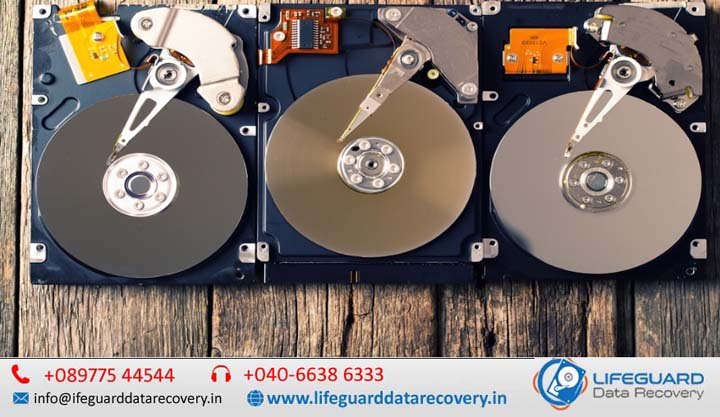
Mechanical hard disk drives (HDDs) remain a primary medium for high-capacity data storage, powering cloud data centers, NAS devices, and desktop backup systems. However, unlike solid-state storage, HDDs rely on ultra-precise moving mechanical components. When those mechanical or electronic systems break down, data loss is often the immediate result.
Whether you are dealing with a clicking external drive or troubleshooting a slow server array, understanding why hard drives fail is the first step toward diagnosing issues, recovering files, and preventing future loss. This guide details the primary physical, electrical, and logical reasons hard drives fail, the early warning signs to monitor, and immediate action steps to protect your data.
Hard Drive Lifespan: What Real-World Data Reveals
A traditional HDD operates using magnetic platters spinning between 5,400 and 7,200 RPM (or up to 15,000 RPM in enterprise systems), while read/write heads hover mere nanometers above the surface on a microscopic cushion of air. Given this friction-sensitive environment, hard drive lifespan is inherently finite.
According to enterprise storage telemetry analyzed across hundreds of thousands of drives by providers like Back blaze, mechanical drives follow a failure distribution model known as the Bathtub Curve:
-
Infant Mortality (Months 1-6): A small spike in failure rates (roughly 1% to 2%) caused by manufacturing flaws, handling damage during shipping, or component assembly errors.
-
Useful Life (Years 1-4): A period of stable operation where the annualized failure rate (AFR) hovers between 1.0% and 1.4% under controlled environment conditions.
-
Wear-Out Phase (Year 5+): Exponentially increasing failure rates as mechanical bearings degrade, lubricant dries up, and magnetic substrate breaks down.
Physical vs. Logical Failure: Knowing the Difference
When analyzing hard disk failure reasons, issues fall into two broad categories: physical (hardware) failure and logical (software) failure.
| Failure Category | Primary Root Causes | Common Symptoms | DIY Recoverable? |
| Physical Failure | Head crash, motor seizure, PCB burn out, dropped drive | Repetitive clicking, grinding, drive not spinning, undetected by BIOS/OS | No. Requires cleanroom environment & specialist equipment. |
| Logical Failure | File system corruption, accidental formatting, malware, bad sectors | “Drive needs formatting” prompt, missing files, slow access times | Yes. In many cases using software tools or disk rebuild commands. |
8 Primary Causes of Hard Drive Failure Explained
Understanding these core common hard drive failure causes helps pinpoint why a drive is failing and determines whether recovery requires professional intervention.
1. Mechanical Wear & Read/Write Head Failure
The read/write head assembly is mounted on an actuator arm driven by a voice coil motor. Over millions of read/write cycles, the drive mechanism experiences wear.
A head crash in hard drive hardware occurs when the slider carrying the read/write head physically strikes the spinning magnetic platter surface. Because the gap between head and platter is narrower than a single smoke particle or human hair, even micro-contaminants or mechanical slop cause the head to scrape away the magnetic coating, producing permanent data destruction.
2. Physical Shock and External Impact
A dropped external hard drive or an accidental desk knock while a drive is actively spinning is one of the most frequent hard drive damage causes. Physical impacts force the delicate floating head into the platter, causing severe surface gouging and mechanical misalignment.
3. Thermal Stress & Hard Drive Overheating
HDDs operate safely within an ambient thermal band of 25°C to 45°C. Excessive temperatures break down internal bearing lubricants, expand platter materials unevenly, and cause premature electronic component failure on the control board.
-
Common causes: Blocked chassis ventilation, failed cooling fans, dust buildup, or stacking drives without adequate thermal clearance.
4. Power Surges and PCB Failure
Electrical spikes—whether from lightning strikes, faulty power supply units (PSUs), or unstable mains supply—cause severe power surge hard drive damage.
The printed circuit board (PCB) mounted on the exterior of the HDD controls motor speed and communications with the host computer. A surge typically destroys the Transient Voltage Suppressor (TVS) diodes or burn out the main controller chip on the PCB, leaving the drive completely unpowered and unresponsive (dead).
5. Bad Sectors and Platter Surface Degradation
Hard drive platters are divided into billions of microscopic magnetic regions called sectors.
-
Physical (Hard) Bad Sectors: Permanent magnetic substrate damage caused by head strikes, manufacturing imperfections, or aging.
-
Logical (Soft) Bad Sectors: Sectors containing corrupted error correction codes (ECC) usually caused by unexpected power cuts mid-write.
When the drive encounters bad sectors on hard drive surfaces, the OS stutters, freezes, or fails to read files stored in those addresses.
6. Firmware Corruption
The HDD’s firmware sits partly on a chip on the PCB and partly on a hidden service area (SA) on the platters themselves. If firmware corruption occurs due to bad sectors in the service area or incomplete manufacturer updates, the drive cannot execute its boot sequence or map tracks, rendering it completely unreadable to the host machine.
7. File System Corruption
Even when the physical drive is 100% healthy, file system corruption can make data inaccessible. Caused by improper drive ejection, sudden loss of power during file saving, or software crashes, logical corruption damages critical file allocation tables (FAT, NTFS, APFS, or EXT4), causing partition loss or raw drive errors.
8. Spindle Motor Failure
The hard drive motor failure occurs when the central spindle bearing seizes due to wear, thermal expansion, or physical drop impact. When the motor seizes, the platters cannot reach operational RPM, producing a quiet high-pitched hum or buzz when power is supplied.
Recognized Hard Drive Failure Symptoms
Detecting early warning signs allows you to back up vital files before complete breakdown occurs.
-
Hard Drive Clicking Noise: A distinctive rhythm known as the “Click of Death” occurs when the drive attempts to read system areas, fails due to damaged heads or corrupted service areas, and continually resets the head arm back to its resting position.
-
Grinding or Screeching Sounds: Indicates active physical contact between the read/write head and the spinning platter surface. Power off the drive immediately.
-
Extremely Slow Read/Write Speeds: File access times climbing dramatically, combined with system freezes during file transfer.
-
Frequent BSODs or System Crashes: Sudden crashes occurring when your operating system attempts to access corrupt sectors on a system drive.
-
RAW File System / “Format Disk” Prompts: Your OS detects the drive connection, but cannot interpret the damaged master file table.
-
Disappearing Files and Folders: Files failing to open, showing 0-byte sizes, or returning input/output (I/O) device errors.
Step-by-Step Troubleshooting: What to Do When Your Drive Fails
If your computer exhibits hard drive not working reasons, follow these safe diagnostic steps to isolate the issue without risking further data loss:
-
Immediately Isolate and Stop Egress: If you hear physical clicking, grinding, or scraping, power off the unit immediately. Continued operation shreds the magnetic platter coating.
-
Check Cables and Interfaces: Swap the SATA/USB cable and test a different power supply connector or motherboard port to rule out peripheral connection faults.
-
Verify BIOS / Disk Management Detection:
-
Restart and open BIOS/UEFI. Check if the drive’s original model name and full capacity are detected correctly.
-
On Windows, open
diskmgmt.mscto see if the drive appears as RAW, Unallocated, or Not Initialized.
-
-
Run Non-Destructive S.M.A.R.T Diagnostics:
-
Use native utility commands or trusted S.M.A.R.T monitoring software to inspect key failure attributes:
-
Reallocated Sectors Count
-
Current Pending Sector Count
-
Offline Uncorrectable Sector Count
-
-
-
Differentiate Software Fix vs. Hardware Intervention:
-
If errors are logical (and S.M.A.R.T health is reported as GOOD), run file system repairs like
chkdsk /for use non-invasive file recovery tools. -
If errors are physical (S.M.A.R.T health is WARNING/CRITICAL or drive clicks), skip software recovery entirely and consult professional hardware recovery specialists.
-
Proven Tips to Extend Hard Drive Lifespan & Prevent Data Loss
While every mechanical drive will eventually wear out, adhering to these operating practices maximizes longevity:
-
Maintain Adequate Ventilation: Keep system temperatures under 40°C using clean intake filters and dedicated drive bay cooling.
-
Use Surge Protectors and Uninterruptible Power Supplies (UPS): Protect drives from sudden electrical drops and voltage spikes during write cycles.
-
Mount Drives Securely: Ensure drives are screwed tightly into vibration-dampening grommets within PC chassis to minimize operational harmonic vibrations.
-
Handle External Drives with Extreme Care: Never move, bump, or unplug an external drive while its indicator LED shows active data transfer.
-
Adopt the 3-2-1 Backup Strategy:
-
Keep 3 copies of critical data,
-
Stored on 2 different storage media types (e.g., HDD + Cloud),
-
With 1 copy kept safely offsite.
-
Frequently Asked Questions (FAQ)
How long does a typical hard drive last?
The average active lifespan of a mechanical HDD is 3 to 5 years. While high-end enterprise drives can last longer under controlled temperature and humidity conditions, active mechanical components inevitably experience fatigue past the 5-year mark.
Can a clicking hard drive be fixed?
A clicking hard drive indicates a severe mechanical or electronic fault—most often damaged read/write heads or platter surface degradation. It cannot be fixed using software or DIY methods. Temporary recovery requires specialized cleanroom head-replacement procedures.
What causes a brand-new hard drive to fail?
Early hard drive failures are usually caused by manufacturing defects, firmware bugs, or physical shock sustained during shipping and delivery. This early failure phase is known as “infant mortality”.
Is it safe to freeze a failed hard drive?
No. Placing a hard drive in the freezer is an outdated, dangerous myth. Freezing introduces moisture condensation inside the sealed drive casing, which destroys platters and permanently short-circuits internal electronics upon spin-up.