
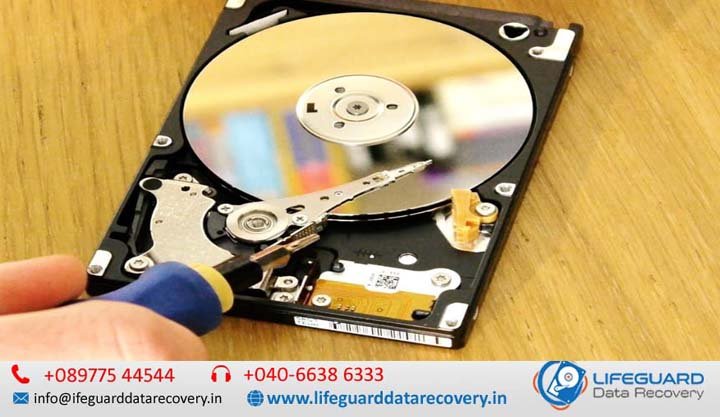
Hard drives rarely fail without leaving a trail of subtle warning signs. Whether it begins with a mysterious system slowdown, a sudden file corruption error, or a rhythmic clicking noise coming from your computer case, early detection is the single most critical factor in preventing catastrophic data loss.
According to long-term drive telemetry data collected across hundreds of thousands of hard drives, mechanical hard disk drives (HDDs) experience an annualized failure rate of 1.3% to 1.8% during their initial operational years, with failure rates spiking significantly after 3 to 5 years of continuous use.
This hard disk failure guide walks you through the early hard drive warning signs, explains how mechanical and logical disk corruption occurs, provides step-by-step diagnostic procedures, and outlines the exact emergency steps to take if your drive is on the brink of collapse.
2. What Is Hard Disk Failure and How Do Drives Fail?
Hard drive failure explained simply: it is the operational state where a storage drive can no longer reliably read, write, or retain binary data.
Unlike Solid State Drives (SSDs)-which rely on NAND flash memory chips and floating-gate transistors-a traditional Hard Disk Drive (HDD) is an electromechanical device. It relies on high-speed rotating magnetic platters spinning between 5,400 to 7,200 RPM (or up to 15,000 RPM in enterprise systems) and floating read/write heads positioned just nanometers above the spinning surface.
How Hard Drives Fail
When answering what is hard disk failure and how hard drives fail, it helps to look at the three main failure vectors:
-
Mechanical Wear & Head Crashes: The read/write heads float on a cushion of air created by the spinning platter. If the drive suffers physical shock or bearing wear, the head can physically contact the platter surface, stripping away the magnetic coating and destroying data instantly.
-
Magnetic Degradation: Over time, the magnetic domains on the platters weaken, causing read errors that turn healthy disk blocks into bad sectors.
-
Electronic Component Breakdown: The external Printed Circuit Board (PCB) houses power regulation chips and controller microprocessors that can fail due to thermal stress or electrical surges.
3. Types of Hard Disk Failures: Physical, Logical, and Firmware
Understanding the specific types of hard disk failures helps you decide whether a drive can be fixed via software troubleshooting or if it requires emergency professional data recovery services before further powering on the drive.
| Failure Type | Root Cause | Common Symptoms | Can Software Fix It? |
| Physical / Mechanical | Broken read/write heads, seized spindle motor, damaged platters | Clicking, grinding, high-pitched whining, drive not spinning | No. Requires cleanroom repair. |
| Logical Failure | Corrupted Master Boot Record (MBR/GPT), damaged file system (RAW drive) | OS fails to boot, files missing, “Format drive before use” prompt | Yes. Via recovery software or formatting. |
| Electronic Failure | Blown diode/resistor on controller board (PCB), power surge | Complete lack of power, drive unrecognized in BIOS, burning smell | Partial. Requires PCB swap & ROM transfer. |
| Firmware Corruption | Corrupted service area (SA) on platter sectors | Drive detected with wrong capacity (0 GB) or generic model name | No. Requires specialized hardware toolkits. |
Physical & Mechanical Failures
Physical failures stem from structural damage inside the drive’s sealed chamber. When a head crash occurs, microscopic debris distributes across the platters, compounding physical damage every second the drive remains powered.
Logical Failures & Bad Sectors
A logical failure occurs when the drive’s physical hardware remains functional, but the organizational structure of the data (such as the NTFS or FAT32 file system) becomes corrupt. This is frequently accompanied by bad sectors-damaged micro-regions on the platter surface that can no longer process read/write operations.
Electronic Failure
When a power surge hits your desktop or external power supply, the drive’s PCB board often acts as a fuse. The drive may appear completely “dead”-producing no sound, vibration, or LED indicators.
4. 10 Critical Hard Disk Failure Symptoms You Should Never Ignore
Spotting hard drive failure symptoms early provides a critical window to copy important files before the drive locks up permanently.
1. Unusual Noises (Clicking, Grinding, or Beeping)
If you are asking “why is my hard drive making clicking noises?”, you are likely observing the infamous “Click of Death.” This sound occurs when the actuator arm moves the read/write head across the platter to locate a track, fails to read the magnetic alignment, resets back to its home position, and retries rhythmically.
2. Extreme Slowdowns and Freezing
If you are wondering “why is my computer running slow?” or freezing whenever you attempt to open folders, your OS may be hung up trying to read data from deteriorating sectors. When Windows encounters unreadable sectors, it repeatedly retries the operation, causing File Explorer to lock up or report 100% Disk Usage in Task Manager.
3. Corrupted Data, Missing Files, and File Access Errors
When files that opened smoothly yesterday suddenly display errors like “File format not recognized” or disappear entirely from folders, magnetic degradation is likely taking place.
4. Frequent System Crashes and Blue Screen of Death (BSOD)
If you wonder “why does my hard drive keep crashing?”, check if vital system files are located on bad sectors. When Windows attempts to access system code from a degraded sector, it triggers a system crash (STOP Code / BSOD).
5. Computer Fails to Boot or Drive Unrecognized
Errors such as “Operating System Not Found”, “Insert Boot Media”, or a drive dropping out of the BIOS/UEFI altogether signal severe firmware or boot partition damage.
6. Accumulation of Bad Sectors
What are bad sectors on a hard drive? Bad sectors are tiny storage areas that have lost their magnetic integrity. They fall into two categories:
-
Hard Bad Sectors: Caused by physical platter damage or head contact.
-
Soft Bad Sectors: Caused by interrupted write cycles (e.g., power loss while saving a file).
7. SMART Status Warnings
Modern hard drives monitor their internal health using SMART status on a hard drive (Self-Monitoring, Analysis, and Reporting Technology). If your motherboard screen displays a “SMART Capable Diagnostic Error” during boot, the internal microcode has logged hardware parameters exceeding critical safety thresholds.
8. Abnormally High Drive Temperatures
While drives run warm during heavy read/write operations, excessive heat (above 55°C / 131°F) indicates high spindle bearing friction or failing PCB voltage regulators, both of which accelerate thermal breakdown.
9. File Transfer Stalls and I/O Device Errors
Receiving an “I/O Device Error” during standard file copying indicates that the operating system’s input/output controller lost communication with the drive during a transfer request.
10. Vanishing Drive Partitions
If a secondary partition (e.g., D: drive) suddenly disappears from Windows Explorer and appears as RAW or Unallocated inside Windows Disk Management, the drive’s Master Boot Record or Partition Table has failed.
5. What Causes Hard Disk Failure? Key Risk Factors
Understanding what causes hard disk failure helps you take preventive steps to maximize hard drive lifespan.
-
Natural Hardware Aging: The typical hard drive lifespan ranges between 3 to 5 years under normal operating conditions. Spindle bearings dry out, lubricated motor channels degrade, and magnetic coatings decay over time.
-
Physical Impacts and Drops: External portable hard drives are vulnerable to kinetic shock. Dropping an active drive causes the head to bounce onto the platter, creating instant physical gouges.
-
Thermal Stress: Poor PC tower airflow or dust build-up causes heat accumulation, which expands internal mechanical tolerances.
-
Power Instability & Improper Shutdowns: Sudden power loss during active write operations leaves incomplete magnetic tracks and can cause head park failures.
6. Diagnostic Steps: How to Test and Health Check Your Hard Drive
If your system exhibits early hard drive warning signs, follow these structured diagnostic steps to evaluate drive health safely.
How to Check SMART Status via Command Prompt
Windows includes built-in tools for a fast, top-level hard drive health check:
-
Press
Windows Key + Xand select Command Prompt (Admin) or Terminal. -
Type
wmic disk drive get statusand press Enter. -
If the response displays “OK”, the basic SMART parameters are within safe operating limits. If it displays “Pred Fail”, back up your data immediately.
Understanding Key SMART Attributes
Third-party diagnostic utilities (such as Crystal Disk Info or Hard Disk Sentinel) provide detailed access to raw SMART values. Watch these three metrics closely
-
ID 05: Reallocated Sectors Count: Tracks the number of damaged sectors that the drive retired and remapped to spare sectors. An increasing reallocated sector count is one of the clearest signs of an impending crash.
-
ID C5 (197): Current Pending Sector Count: Represents unstable sectors waiting to be re-tested and remapped.
-
ID C6 (198): Offline Uncorrectable Sector Count: Tracks read/write errors that could not be corrected by built-in ECC (Error Correcting Code) algorithms.
Running Surface Scans and CHKDSK Safely
To perform a complete software scan for hard drive troubleshooting:
7. Emergency Actions: What to Do When Your Hard Drive Is Failing
When a hard drive shows severe symptoms, taking the right immediate actions can mean the difference between total data recovery and permanent loss.
Step-by-Step Emergency Response Protocol
-
Stop Writing Data Immediately: Do not download new files, install software, or run defragmentation tools on the failing drive.
-
Back Up Critical Data First: Priority copy your most vital documents (family photos, financial records, work files) rather than initiating a full system image backup.
-
Power Down the Drive: If the drive is making unusual noises or causing system freezes, shut down the PC or disconnect the external cable.
-
Avoid Dangerous DIY Myths:
-
Do NOT freeze your drive: Placing a drive in the freezer introduces moisture condensation directly onto the magnetic platters once it warms up, causing irreversible head adhesion.
-
Do NOT open the casing: Hard drives must only be opened inside an ISO Class 5 cleanroom environment. Microscopic dust particles in ambient room air will destroy platters when the heads pass over them.
-
Can Data Be Recovered from a Failed Hard Drive?
Yes. Even if a drive is physically damaged or unrecognized by Windows, specialized hard drive recovery engineers can replace damaged head assemblies inside a cleanroom environment or image degraded platter surfaces sector-by-sector.
8. Prevention & Maintenance Tips to Extend Hard Drive Lifespan
Following solid hard disk maintenance tips reduces hardware stress and helps prevent unexpected failures.
-
Ensure Adequate Cooling: Keep PC fans clean and maintain ambient operating temperatures below 40°C (104°F).
-
Use an Uninterruptible Power Supply (UPS): Connect desktop computers and NAS storage units to a line-interactive UPS to protect against voltage spikes and brownouts.
-
Enable Safe Ejection Practices: Always use the “Safely Remove Hardware and Eject Media” option before unplugging external USB hard drives.
-
Adopt the 3-2-1 Backup Rule: Maintain 3 copies of your data on 2 different media types, with 1 copy stored offsite or in the cloud.
9. Frequently Asked Questions (FAQs)
Can a failing hard drive still work?
Yes, a failing hard drive can often continue operating for days or weeks while accumulating bad sectors. However, performance will degrade significantly, and complete collapse can happen suddenly without further warning.
Can a damaged hard drive be repaired?
Logical file corruption and soft bad sectors can be repaired via formatting or disk utilities. However, physical platter scratches, broken heads, or burnt controller chips cannot be repaired for continued daily use; they can only be temporarily bypassed or replaced in a cleanroom to extract existing data.
How do I know if my hard drive or SSD is failing?
While HDDs provide physical warnings (clicking, grinding, severe file access delays), SSDs fail silently due to controller wear or flash memory exhaustion. Common SSD failure symptoms include sudden read-only mode locks, boot errors, and drive disappearance without audio warnings.
Service Anchor Text & Cluster Strategy
Strategic Anchor Text Placements
To integrate commercial and service intent naturally into this informational content, incorporate these anchor text options:
| Target Page / Service Type | Recommended Anchor Text | Context / Section |
| Emergency Data Recovery Service | professional data recovery services |
Section 3 (Types of Hard Disk Failures Table) |
| Cleanroom Hard Drive Repair | specialized hard drive recovery engineers |
Section 7 (Emergency Actions) |
| Disk Diagnostic & Repair Services | hard drive diagnostic and health evaluation |
Section 6 (Diagnostic Steps) |
| Enterprise / NAS Data Recovery | RAID and NAS data recovery solutions |
Section 8 (Prevention & Maintenance) |