
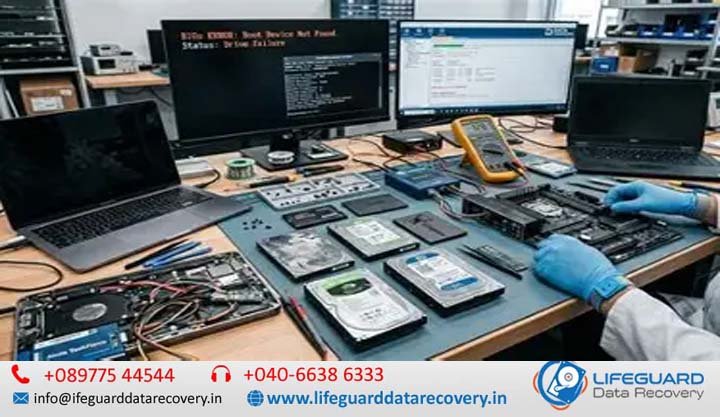
When a computer fails to boot or an secondary drive disappears, few technical issues cause as much anxiety as a hard disk drive (HDD) vanishing from the BIOS/UEFI. The Basic Input/Output System (BIOS) acts as the low-level handshake between your motherboard and storage media. If your drive isn’t listed during POST (Power-On Self-Test), your operating system cannot load, and your files become completely inaccessible.
In India, storage drives face unique environmental and operational challenges-from voltage spikes caused by unannounced power outages to elevated ambient humidity and dust exposure. Resolving an HDD BIOS detection failure recovery India scenario requires a structured approach that separates simple cable or software settings from dangerous hardware failures.
Introduction: What Happens When Your Hard Drive Disappears from BIOS?
When an HDD not detected in BIOS error occurs, the primary diagnostic system on your motherboard has sent an identification command down the SATA or NVMe bus and received either silence, corrupt data, or an electrical short error.
How BIOS Interacts with Your Hard Disk Drive
During system startup, the BIOS queries all physical storage controllers via standard SATA/AHCI protocols. The drive’s on-board controller (PCB) responds by transmitting its firmware identification, serial number, head configuration, and sector capacity. If electrical power is missing, the PCB logic board is burned, or the internal read/write heads fail to read the platter’s Service Area (SA), the BIOS marks the port as “Empty” or “Not Present”.
Quick Triage: Safe DIY vs. Immediate Professional Recovery
Before attempting any troubleshooting step, perform a quick safety evaluation:
| Symptom / Condition | Risk Level | Safe DIY Action? | Recommended Next Step |
| Silent drive, normal BIOS settings | Low | Yes | Reseat cables, check secondary PC. |
| Drive spins smoothly, not in BIOS | Moderate | Yes (Limited) | Check BIOS storage mode, update IRST drivers. |
| Burnt smell or visible PCB scorch | High | No | Do not power on; requires [hard drive data recovery India] service. |
| Clicking, grinding, or loud beeping | Critical | No | Shut down immediately; cleanroom mechanical repair required. |
Key Causes of Hard Drive Detection Failure in India
A hard drive detection failure India diagnosis typically falls into one of four distinct technical categories:
Physical and Mechanical Failures
Inside a hard drive, magnetic platters spin at speeds between 5,400 and 7,200 RPM while read/write heads float nanometers above the surface.
-
HDD head failure: Physical shocks or sudden power loss can cause the floating heads to contact the platter surface or crash into the parking ramp. If the heads cannot read calibration data from the drive, the drive aborts startup and remains unrecognized.
-
HDD spindle motor failure: Spindle motor bearings can seize due to physical impacts or fluid bearing lubricant degradation, leaving the drive completely silent or producing a faint electrical buzz.
Electronic and PCB Component Damage
Electrical power quality in many Indian cities experiences frequent surge variations and brownouts.
-
HDD PCB failure & HDD electronic failure: A sudden voltage spike often causes the drive’s Transient Voltage Suppressor (TVS) diodes on the 5V or 12V rails to short to ground to shield inner silicon.
-
Hard drive power failure: If a power surge breaches the TVS diode, it destroys the motor control IC or main controller chip, leaving the drive without logic power.
Firmware Corruption and Service Area Loss
A hard drive’s operating microcode is divided between an 8-pin ROM chip on the outer PCB and a reserved zone on the spinning platters called the Service Area (SA). If HDD firmware failure occurs due to bad sectors in the Service Area, the drive enters a kernel loop. The BIOS will either fail to detect the drive or display corrupted model names with 0 MB capacity.
Cable, Port, and Connection Faults
Indian atmospheric conditions with high dust index levels accelerate metal oxidation on exposed contacts.
-
SATA cable failure: Internal SATA data cables degrade over time due to thermal cycling and physical bending, leading to packet errors that prevent the BIOS from completing its handshake.
-
HDD power connector problem: Loose SATA power molex splitters or corroded power pins cut off stable voltage, preventing the disk motor from reaching full operational speed.
Recognizing the Symptoms: Diagnosing Internal HDD Not Detected Issues
Proper diagnosis relies on observing both auditory and visual cues before opening your PC case.
Auditory Clues
-
Rhythmic Clicking or Ticking: Indicates the drive controller is attempting to position the read/write heads, but cannot locate alignment marks on the platter surface.
-
High-Pitch Beeping or Whining: Indicates stiction (heads stuck to platters) or a seized spindle motor attempting to rotate.
-
Total Silence: Points directly to an HDD electronic failure or blown TVS diode on the PCB board.
BIOS/UEFI Visual Indicators
-
Blank / “Not Present”: The port electrical link is completely inactive.
-
Scrambled Strings: Displays text like
BS_35_SATAor random symbols, indicating microcode corruption in the drive’s Service Area. -
0 MB Capacity / Uninitialized: The drive controller responds, but the translator module mapping logical blocks is inaccessible.
Internal SATA vs. External USB HDD Non-Detection Differences
When an internal HDD not detected issue occurs, connection checks focus on direct motherboard ports and SATA PSU cables. For an external HDD not detected problem, the breakdown often resides in the USB-to-SATA bridge controller inside the external casing rather than the drive itself. Removing the bare drive from its enclosure and testing via direct SATA connection often isolates enclosure controller failure.
Step-by-Step DIY Fixes for HDD BIOS Detection Failure
Follow these steps sequentially to resolve soft detection errors while avoiding data loss.
Step 1: Physical Cable & Power Inspections
-
Power down the system completely and switch off the PSU switch.
-
Open the desktop cabinet and disconnect both the SATA data cable and SATA power cable.
-
Inspect gold contacts for oxidation or dust buildup; clean gently with isopropyl alcohol and a soft brush.
-
Plug the SATA data cable into a different port on the motherboard (preferably Ports 0 or 1).
-
Use a direct power cable from the power supply unit rather than daisy-chained molex adapters.
Step 2: BIOS/UEFI Configuration & Reset
-
Boot your computer and repeatedly press
F2,DEL, orF10to enter BIOS Setup. -
Navigate to Storage / SATA Configuration.
-
Ensure the SATA Controller is set to Enabled.
-
Toggle Storage Mode between AHCI and Legacy IDE / CSM mode depending on system age.
-
Reset BIOS to Factory Defaults by choosing Load Optimized Defaults (usually
F9), then Save and Exit (F10).
Step 3: Resolving Intel VMD / Controller Conflicts on Modern Motherboards
On 11th Gen and newer Intel systems, the storage controller operates behind an Intel Volume Management Device (VMD) architecture.
-
Enter BIOS and locate VMD Setup Menu under the Advanced tab.
-
If installing an OS or adding standard SATA drives, set Enable VMD Controller to Disabled.
-
If keeping VMD enabled for RAID setups, download the Intel Rapid Storage Technology (IRST) driver package to a USB installer drive to allow Windows to recognize attached disks during startup.
Step 4: Testing the Drive via Secondary PC or External SATA Adapter
To confirm if the issue resides in your motherboard or the drive:
-
Connect the drive to a second desktop system using known-good cables.
-
Alternatively, attach the drive to an externally powered SATA-to-USB docking station. If the drive appears in Disk Management on another PC, your primary PC’s motherboard ports or BIOS settings require adjustment.
Dangerous Fixes to Avoid
-
The Freezer Myth: Placing a drive in a freezer introduces condensation inside sealed platters, destroying the magnetic substrate upon powering on.
-
Direct PCB Swapping Without ROM Transfer: Modern drives store unique head adaptive calibration data inside an 8-pin ROM chip. Swapping a matching PCB board without micro-soldering the original ROM chip to the donor board causes severe head misalignment and potential platter scoring.
-
Running CHKDSK or Disk Initialization: If a drive has bad sectors or hardware instability, forcing sector repair commands stresses read heads, converting recoverable errors into permanent data destruction.
Professional HDD Data Recovery Services in India for Non-Detecting Drives
When hardware components fail, DIY attempts must stop.
When DIY Troubleshooting Must Stop Immediately
Cease all testing if your drive displays any of these critical symptoms:
-
Clicking, scraping, or screeching noises.
-
Burning electrical odor coming from the circuit board.
-
Drive powers down automatically within 5 seconds of turning on.
-
Critical business or personal data has no backup copy.
How Indian Data Recovery Labs Handle Physical & Firmware Failures
Professional [failed HDD recovery India] facilities utilize hardware tools not accessible to general repair shops:
-
Firmware Terminal Repair: Hardware tools such as the PC-3000 communicate directly with the drive’s CPU via vendor-specific COM/TTL serial ports, bypassing corrupt system areas to patch microcode modules.
-
Class 100 Cleanroom Operations: If internal mechanical components fail, the drive is opened inside a Class 100 air-filtered environment. Certified engineers replace damaged Head Stack Assemblies (HSA) using matching donor parts.
Evaluating Recovery Providers in India
When searching for trusted [HDD data recovery services India], verify the following criteria:
-
In-House Cleanroom Facility: Confirm the provider owns a certified cleanroom environment rather than outsourcing.
-
Data Security Standards: Ensure the provider holds ISO data protection compliance to safeguard sensitive personal or corporate information.
Preventative Measures to Protect Hard Drives from Detection Failures
-
Invest in an Online UPS System: Shield your PC from Indian power grid surges and sudden outages using an Uninterruptible Power Supply (UPS) rated for your system load.
-
Maintain Low Thermal Exposure: Ensure PC cabinets have proper fan intake and exhaust filters. Overheating degrades drive solder joints and motor lubricants over time.
-
Adopt the 3-2-1 Backup Strategy: Maintain 3 copies of important data across 2 different media types, with at least 1 copy stored offsite or in cloud storage.
Frequently Asked Questions (FAQs)
Why is my hard drive spinning but not detected in BIOS?
A drive that spins has working power, but its controller cannot complete the firmware handshake. This occurs when read/write heads fail to read the Service Area, the main controller chip suffers firmware corruption, or the SATA data lines are damaged.
Can a corrupted BIOS cause an HDD not to be recognized?
Yes. Corrupted system memory or misconfigured BIOS storage flags (such as enabled Intel VMD without matching drivers) prevent the motherboard from enumerating connected storage drives. Resetting or updating the motherboard BIOS often resolves this.
Can I repair a hard drive PCB at home to fix BIOS non-detection?
Simple TVS diode removal can sometimes clear a direct short after a power surge if you possess soldering expertise. However, complete [hard drive PCB repair] requires transferring the original 8-pin ROM chip to a donor board using hot-air rework equipment.
How much does hard drive data recovery cost in India for a drive not detected in BIOS?
Logical or minor PCB firmware recovery typically ranges from ₹3,000 to ₹9,000. Complex recovery involving mechanical head replacement or motor stiction inside a cleanroom ranges from ₹12,000 to ₹35,000+ depending on drive capacity and damage severity.
Conclusion
A hard disk BIOS detection problem does not automatically mean your data is lost forever. By following systematic diagnostic steps-inspecting physical connections, adjusting motherboard BIOS settings, and recognizing when hardware failures require professional care-you can resolve soft detection errors safely. When physical sounds or electrical burns indicate hardware damage, utilizing a professional [hard disk recovery India] laboratory guarantees your valuable files are recovered safely without risking permanent platter damage.