
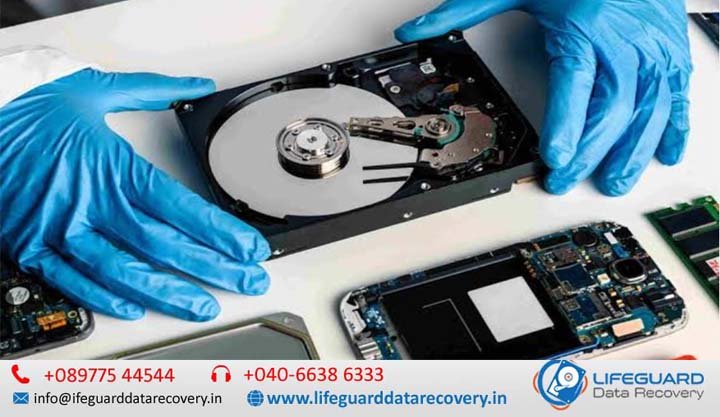
Dealing with an inaccessible hard drive, corrupted partition, or disappearing files can feel like an emergency-especially when critical business documents or personal photos are on the line. Hard drive corruption is one of the most common storage failures, but in the vast majority of logical failure cases, your files are still intact. They simply lost their directory pointers.
This guide provides a safe, battle-tested recovery workflow. You will learn how to diagnose drive health, extract files using hard disk data recovery techniques without risking further loss and apply step-by-step methods to repair corrupted hard drive without losing data.
Understanding Hard Drive Corruption: Logical vs. Physical Failure
Before attempting any corrupted hard disk recovery, you must determine whether your storage device suffered software-based degradation or hardware-level destruction.
Logical Drive Corruption (Fixable at Home)
Logical corruption happens when the underlying software infrastructure managing your files breaks down while the physical disk components remain fully operational:
-
File System Degradation: Failures in NTFS file system corruption or FAT32 structure where the OS loses track of cluster allocation tables.
-
Bad Sectors: Degraded magnetic areas on mechanical platters or worn-out flash memory cells in SSDs.
-
Partition Table Corruption: Master Boot Record (MBR) or GUID Partition Table (GPT) corruption rendering volumes invisible or unformatted.
-
Improper Ejection & Power Cuts: Unexpected power drops during active write operations leaving half-written metadata logs.
Physical Drive Damage (When to Stop DIY Attempts)
If you are dealing with a damaged hard disk exhibiting physical failure, running DIY software scans will overheat or degrade the internal components, turning recoverable data into permanent loss.
Warning Signs: How to Spot a Corrupted Hard Drive Early
Hard drives rarely fail without prior warnings. Recognizing the signs of hard drive corruption early gives you time to extract data before the drive drops off the system bus completely.
Common Error Messages and System Behavior
-
“Drive is Not Accessible. Access is Denied.” Indicates file permissions or security descriptor corruptions.
-
“The disk structure is corrupted and unreadable.” Indicates Master File Table (MFT) or root directory corruption.
-
“You need to format the disk in drive X: before you can use it.” Triggered when the OS file system driver fails to read the partition index.
-
Extremely Slow Read/Write Speeds: File transfers dropping to bytes per second or freezing File Explorer during simple directory opens.
-
Files Disappearing or Corrupting: Opening a folder reveals missing items or files displaying unexpected zero-byte sizes (hard drive not showing files).
The Golden Rule: Recover Corrupted Hard Drive Data Before Attempting Repairs
Most tutorials instruct users to run system commands like CHKDSK first. This is dangerous. Repair utilities attempt to enforce consistency in the file system by deleting orphan files, unlinking damaged index trees, and reallocating bad sectors.
To recover lost data from corrupted HDD media safely, always follow the Data First, Repair Second methodology:
-
Phase 1 (Data Extraction): Clone or scan the disk to copy accessible and deleted files off to a secondary healthy storage drive.
-
Phase 2 (Disk Repair): Run repair commands, command-line utilities, or disk reformatting only after your essential files are safely copied elsewhere.
How to Recover Files from Corrupted Hard Drive (Step-by-Step)
Follow this safe workflow to recover files from corrupted hard drive setups without writing new data to the target disk.
Method 1: Create a Byte-Level Disk Image (Safe Scan Method)
When a hard drive has physical bad sectors, scanning it repeatedly with data recovery software subjects the magnetic platters to heavy stress, which can cause total drive failure mid-scan.
-
Connect a healthy external hard drive with equal or larger capacity than the corrupted disk.
-
Use a disk cloning utility (such as OSForensics, FTK Imager, or DD-Img) to create a Byte-by-Byte / Raw Disk Image (
.imgor.ddformat) of the corrupted drive. -
Once the image file is created, safely disconnect the original corrupted hard drive.
-
Mount and run your data recovery software tools on the static disk image file instead of the physical drive.
Method 2: Extract Files Using Data Recovery Software
To recover deleted files from corrupted hard disk partitions or unreadable volumes, use specialized data recovery software (e.g., Disk Drill, Stellar Data Recovery, or EaseUS Data Recovery Wizard):
-
Download and Install: Install the recovery software onto your primary OS drive (
C:). Never install software onto the corrupted drive. -
Select Target Drive: Launch the program and choose the corrupted volume or mounted byte-level image file.
-
Run Deep Scan: Allow the software to run both quick file system index scans and deep signature-based file scans (raw recovery).
-
Filter & Preview: Use file filters (Images, Documents, Videos) and use the preview tool to check file integrity before restoring.
-
Save to a Safe Location: Select the target files and click Recover. Choose a destination path on a separate healthy disk.
Method 3: RAW Hard Drive Recovery (Fixing Drives Showing RAW File System)
When a storage device experiences severe file system header corruption, Windows loses its ability to parse NTFS or FAT32 metadata and re-labels the drive volume as RAW.
-
Why Drives Become RAW: Damaged Volume Boot Record (VBR), corrupted MFT entries, or corrupted partition header signatures.
-
How to Recover Data from RAW Partition:
-
Open your data recovery software.
-
Select the Unallocated Space or RAW Partition listed under the disk index.
-
Perform a Signature Scan (Raw File Search). This bypasses the broken file system index and reads raw binary file headers (e.g., searching for PNG, PDF, or DOCX file signatures directly across drive sectors).
-
Restore identified files to your secondary drive.
-
How to Repair Corrupted Hard Drive Without Losing Data
Once your critical files are secured on another storage device, you can safely proceed with fixing the drive structure to make it usable again.
Step 1: Run CHKDSK via Command Prompt
The Check Disk tool repairs system errors, fixes unallocated file chains, and isolates bad sectors on the disk surface.
-
Press Windows Key + S, type
cmd, right-click Command Prompt, and choose Run as Administrator. -
Type the following command (replace
X:with your corrupted drive letter): -
Parameter breakdown:
-
/f: Fixes logical file system errors on the volume. -
/r: Locates bad sectors and recovers readable information. -
/x: Forces the volume to dismount before scanning begins.
-
-
If checking the primary system drive (
C:), typeYwhen prompted to schedule the check on the next system restart.
Step 2: Use Windows System File Commands (SFC & DISM)
If the drive corruption stems from system component degradation in Windows:
-
Open Administrator Command Prompt.
-
Run the System File Checker to repair system dependencies:
-
Run Deployment Image Servicing and Management (DISM) to fix system image corruption:
Step 3: Run PowerShell Repair-Volume Command
For modern Windows environments, PowerShell provides an alternative to traditional CHKDSK tools.
-
Right-click the Start menu button and select PowerShell (Admin) or Terminal (Admin).
-
Run a quick volume scan:
PowerShell
-
If errors are identified, execute an offline volume fix:
PowerShell
Step 4: Reformat the Corrupted Drive and Rebuild Partitions
If file system commands fail to fix the corruption, completely reformatting the drive will write new boot sectors, rebuild the partition structure, and isolate bad sectors.
-
Press Win + X and select Disk Management.
-
Right-click the corrupted volume and choose Format.
-
Set the file system to NTFS (for internal Windows drives) or exFAT (for cross-platform external drives).
-
Uncheck “Quick Format”. Performing a Full Format forces Windows to scan every sector on the drive for read/write reliability.
How to Recover Corrupted External Hard Drive Data
Portable external hard drives face additional failure vectors due to mechanical transport, loose physical cabling, and power fluctuations during hot-unplugging.
Check Connections, Cables, and USB Bridge Controllers
Before assuming internal platter corruption when an external hard drive detected but not opening:
-
Swap Data Cables: USB micro-B and USB-C interface cables frequently break internally.
-
Bypass USB Hubs: Connect the external drive directly to a motherboard USB port on the back of your desktop PC to rule out power drops.
-
Test Port Power: If using a 3.5-inch desktop external enclosure, verify the external power adapter is supplying sufficient voltage.
Reassign Drive Letters and Update Device Drivers in Disk Management
Drive letter collisions can make a healthy or lightly degraded external volume appear inaccessible:
-
Open Disk Management (
diskmgmt.msc). -
Locate your external hard drive in the visual bottom pane.
-
Right-click the volume partition and select Change Drive Letter and Paths…
-
Click Change, assign an unused letter (e.g.,
M:orDrive Z:), and click OK. -
Open Device Manager, expand Disk drives, right-click your external storage unit, and select Uninstall device. Re-plug the USB cable to reload fresh driver stacks.
Best Practices to Prevent Hard Drive Corruption in the Future
| Prevention Practice | Actionable Rule | Risk Mitigated |
| 3-2-1 Backup Strategy | Keep 3 copies of data across 2 different media types with 1 offsite/cloud copy. | Absolute data loss from total physical disk failure. |
| Safe Hardware Ejection | Always click “Safely Remove Hardware and Eject Media” in the system tray before unplugging drives. | Unwritten cache loss and Master File Table (MFT) corruption. |
| S.M.A.R.T. Monitoring | Check disk health periodically using CrystalDiskInfo or manufacturer diagnostics. | Sudden mechanical or platter breakdown. |
| Uninterruptible Power Supply (UPS) | Connect desktop PCs and external storage arrays to a battery backup unit. | RAW drive corruption caused by sudden power cuts during disk operations. |
Frequently Asked Questions
Can I recover data from a corrupted hard drive without software?
Yes, in minor logical failure cases. If the issue is a missing drive letter or temporary driver glitch, reassigning drive paths in Disk Management or updating system drivers can make files accessible again without software. However, if file indexes or partition tables are corrupted, data recovery tools are necessary to parse raw binary structures.
Is it possible to recover files from a RAW hard drive?
Yes. A RAW drive status means Windows can no longer read the file system metadata, but the underlying file signatures remain intact on the storage platters. Data recovery software running a signature/deep scan can locate, reconstruct, and restore files from RAW volumes without needing a valid file system.
Why does my hard drive say “The disk structure is corrupted and unreadable”?
This error occurs when the Master File Table (MFT) on NTFS or the File Allocation Table (FAT) on older volumes becomes corrupted or unreadable. It is commonly caused by disconnecting an external drive while a file write operation is active, bad storage sectors developing in metadata zones, or malware infection.
How much does professional hard drive data recovery cost?
If DIY software approaches fail due to severe physical or mechanical damage, professional cleanroom laboratory recovery services typically range from $300 to $1,500+, depending on the drive capacity, spare parts required (e.g., replacement read/write heads), and the severity of platter degradation.
Conclusion
Recovering data from a corrupted hard drive requires a methodical, cautious approach. By prioritizing data extraction before disk repair, you prevent automated tools like CHKDSK from causing irreversible file loss. Once your valuable files are securely copied to a healthy drive, you can repair the corrupted drive using command-line diagnostic tools or a clean full reformat.