
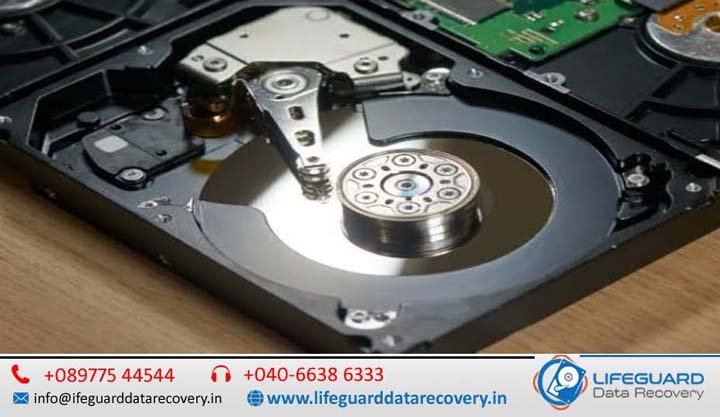
Few things trigger a sudden spike of panic like a computer that freezes mid-task, followed by a strange noise coming from your machine. Your storage drive is the heart of your system, holding years of irreplaceable work, software, and memories. When it begins to degrade, it rarely goes out without a fight-leaving clues that point toward impending doom.
Whether your computer uses a traditional mechanical Hard Disk Drive (HDD) or a modern Solid-State Drive (SSD), recognizing the early warning signs of a hard drive about to fail is critical to saving your files before your system crashes completely.
This guide details the physical and digital distress signals of storage drives, breaks down step-by-step diagnostic workflows, and outlines an immediate triage strategy to rescue your data safely.
How to Tell if a Hard Drive is Failing: The Early Warning Signs
Learning how to recognize hard drive failure before your operating system refuses to boot is the difference between an easy hardware upgrade and an expensive data recovery nightmare. Data from large-scale studies-including Back blaze’s extensive 2025/2026 drive fleet logs-confirms that while storage drives are highly reliable, failures consistently trend upward after the three-to-four-year mark. Knowing how to spot anomalies during this window is vital.
Can a Hard Drive Fail Without Warning?
Yes, a hard drive can fail without warning. While many storage devices degrade slowly, sudden failures occur due to electrical spikes, firmware corruption, controller damage, or severe physical trauma.
Understanding why hard drives fail unexpectedly helps highlight the differences between gradual degradation and sudden electronic death:
-
Mechanical Wear: Physical components gradually break down over several years.
-
Sudden Failure Vectors: A major power surge can fry an internal printed circuit board (PCB) instantly. Similarly, manufacturing anomalies can trigger early drive failures within the first 90 days of deployment-a phase engineers call “infant mortality.”
The Core Symptoms of a Failing Hard Disk (Mechanical HDDs)
Mechanical HDDs operate using physical magnetic platters spinning at high speeds while read/write heads hover mere nanometers above them. Because they are mechanical, the symptoms of a failing hard disk often present as distinct sounds or unmistakable physical lags.
What Does a Failing Hard Drive Sound Like?
If you are wondering what a failing hard drive sounds like, the answer depends on which physical component is breaking down:
-
The Clicking Noise (“Click of Death”): When the read/write heads cannot correctly align with the magnetic platters or read the tracking data, they quickly snap back to their home position. This creates a rhythmic, metallic clicking noise.
-
Grinding or Screeching Noises: A harsh grinding sound indicates that the spindle motor bearings are failing, or worse, that the read/write head has dropped directly onto the platter surface, permanently destroying the magnetic coating.
-
Whirring or Buzzing: If the spindle motor is stuck trying to spin up the heavy internal platters, you may hear a faint, repeating buzzing sound from the drive body.
Frequent File Corruption and Disappearing Data
As magnetic sections on a drive surface break down, files become unreadable. You might try to open a known good file only to receive errors that the format is unreadable, or you may notice that folders suddenly vanish. When an application attempts to modify or pull data from an unreadable block, it will fail, frequently corrupting the surrounding filesystem structure.
Aggressive System Slowdowns, Freezes, and Blue Screens (BSOD)
A slow computer can easily indicate hard drive failure. When Windows or macOS attempts to read or write a file across a degrading sector, the operating system enters an infinite loop trying to access that block. Your cursor freezes, apps stop responding, and the entire system locks up. If the block contains critical operating system files, your system will crash entirely, displaying a Blue Screen of Death (BSOD) on Windows or a kernel panic on Mac.
Silent Killers: How to Recognize Hard Drive Failure in Modern SSDs
Solid-State Drives (SSDs) have no moving parts. They store data electrically inside NAND flash memory blocks. Because they lack physical arms and motors, you cannot rely on noise to spot an issue. SSDs fail silently, meaning you must monitor behavioral anomalies closely.
Read-Only Locking and Boot Failures
Unlike HDDs, an SSD has a predefined lifespan dictated by its Terabytes Written (TBW) threshold. Every time data is modified, the underlying flash memory cells degrade. When the drive controller detects that the flash cells have run out of write cycles, it implements a protective mechanism: it locks the drive into a permanent read-only mode.
When this happens, you can view and copy existing files, but you cannot save new documents, download updates, or boot into your operating system if it requires writing temporary system files.
Frequent Software Crashes and Crypto-Errors
When the internal SSD controller encounters bad memory blocks that can no longer hold an electrical charge, it triggers application crashes during basic save operations. You may notice files failing to copy, or error codes mentioning cryptography mismatches or invalid checksums. This indicates that the data entering the memory cells is mutating due to unstable flash hardware.
Hard Drive Failure Diagnosis: Understanding Bad Sectors
To understand how to diagnose hard drive issues before failure, you must understand how data storage blocks degrade.
What Are Bad Sectors and How Do They Affect Performance?
A bad sector is a tiny cluster of storage space that has become unreadable or unresponsive to write commands. They fall into two distinct categories:
Bad sectors degrade performance because the drive controller has to spend time locating alternate sectors to re-write data. This constant data re-routing increases access times and slows down your overall performance.
Hard Drive Health Monitoring Guide: Using S.M.A.R.T. Data
Every modern SSD and HDD contains an internal diagnostic brain known as S.M.A.R.T. (Self-Monitoring, Analysis, and Reporting Technology). This framework constantly updates health parameters inside your drive’s firmware.
What is S.M.A.R.T. Status on a Hard Drive?
S.M.A.R.T. status acts as a reliable early warning indicator for your drive. It tracks real-time telemetry like total power-on hours, operational temperatures, and write endurance levels.
When evaluating hard drive health monitoring guide workflows, prioritize these three critical S.M.A.R.T. telemetry attributes:
-
Reallocated Sectors Count: The number of bad sectors that the drive has successfully found and moved to hidden spare blocks. A steady increase in this value is a clear indicator of an active hardware failure.
-
Current Pending Sector Count: Unstable sectors currently waiting to be remapped due to read/write errors.
-
SSD Remaining Life / Wear out Indicator: A percentage score starting at 100% that counts down as the NAND cells exhaust their rated electrical endurance cycles.
How to Check if a Hard Drive is Dying: Step-by-Step Triage
If your system is showing symptoms of hard drive damage, use native tools to run a diagnostic check.
How to Check Hard Drive Health in Windows 10 and Windows 11
You can check if a hard drive is dying on Windows without third-party tools by using the Command Prompt:
1.Open Command Prompt as Administrator: Takes less than 1 min.
Press the Windows Key, type, right-click on Command Prompt, and select Run as administrator.
2.Query the WMIC Disk Status Interface: Instant tool execution.
Type the command into the prompt and press Enter.
3.Analyze the Diagnostic Result Strings: Evaluate status output.
If the response reads OK, your drive’s internal S.M.A.R.T. attributes are within normal operating parameters. If it displays Pred Fail, the drive controller has detected an imminent hardware failure. Back up your data immediately.
How to Diagnose Hard Drive Health on a Mac
macOS provides an easy, visual layout to check your storage array’s hardware integrity:
1.Launch the macOS Disk Utility App: Access via Finder.
Open Finder, navigate to Applications, open the Utilities folder, and launch Disk Utility.
2.Select Your Physical Storage Device: Target top-level disk tree.
Click on the primary, non-indented disk item listed at the very top of the left-hand navigation column.
3.Read the Verified Status Output: Verify disk health status.
Locate the entry labeled S.M.A.R.T. Status near the bottom info panel. A Verified status confirms normal hardware operation. If it lists Failing, the drive requires immediate replacement.
Emergency Action Plan: What to Do Before Your Hard Drive Crashes
When you recognize early warning signs of hard drive failure, your immediate actions dictate whether you save your files or lose them permanently.
Cease Content Creation and Heavy Read/Writes
Stop downloading files, running antivirus scans, or installing new applications. If an HDD has a loose mechanical head, every second the platters spin increases the risk of scratching the media surface. Keep drive stress to an absolute minimum.
Establish an Immediate Backup or Disk Clone
Do not try to move files one by one, which subjects the drive to prolonged stress. Instead, connect an external drive and use cloning tools to pull a full image of the drive all at once. This copies your data quickly and efficiently, minimizing the time the failing hardware needs to stay powered on.
When to Cut Power and Call Professional Data Recovery
If your drive is clicking loudly, grinding, or constantly locking up your system during a file copy, power down the computer immediately. Continuous troubleshooting will cause further physical damage. At this stage, your best option is to hand the hardware over to a professional cleanroom data recovery service.
Preventing Hard Drive Failure and Maximizing Lifespan
While all storage media wears out eventually, careful maintenance habits can help prevent premature hard drive failure and extend its usable lifespan.
-
Controlling Physical Vibrations and Thermal Loads: Mechanical drives are sensitive to motion. Avoid moving a laptop or desktop while its hard drive is actively spinning. Additionally, ensure your system components stay well-ventilated; keeping operational temperatures below 45°C helps protect internal lubricants and delicate micro-components from thermal breakdown.
-
Using Uninterruptible Power Supplies (UPS): Abrupt voltage drops and sudden shutdowns can corrupt your drive’s file structure or fry its delicate controller board. Connecting your system to a high-quality Uninterruptible Power Supply (UPS) provides clean power filtering and gives your device enough battery life to shut down safely during a blackout.
Frequently Asked Questions (FAQ)
How long do hard drives usually last?
On average, traditional mechanical hard drives last between 3 and 5 years, while solid-state drives (SSDs) can easily last 10 years or more under normal workloads. This difference is primarily down to the design of SSDs, which lack moving parts and avoid physical wear.
What causes hard drive failure?
Hard drive failure is typically caused by mechanical wear over time, electrical surges, physical impact, manufacturer defects, or exposure to excessive heat and humidity.
What are the first signs of hard drive failure?
The earliest signs include brief, intermittent system lockups, random file read/write errors, slower file access speeds, and unusual clicking or humming sounds coming from the computer chassis.
Can chkdsk fix a dying hard drive?
No. While CHKDSK can locate and repair logical file system corruption or mark soft bad sectors as unusable, it cannot repair physical mechanical damage or worn-out flash memory cells. Using CHKDSK on a physically failing drive can actually accelerate its breakdown due to the heavy read/write stress the utility puts on the hardware.