
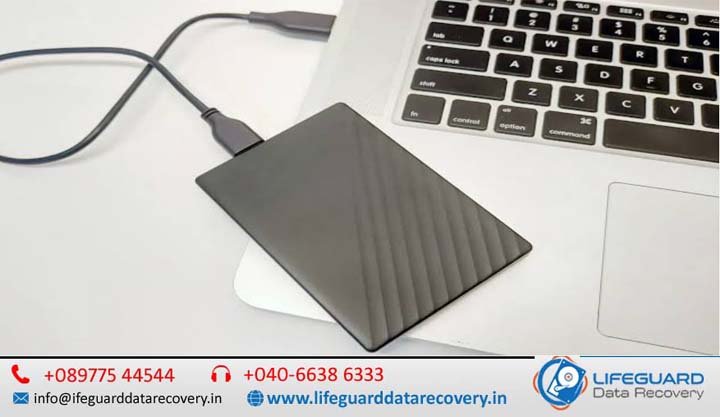
We’ve all been there: you’re in the middle of a massive file transfer or working directly off your storage drive when suddenly, you hear that dreaded system notification sound. A window pops up warning you that the device was not ejected properly, and your progress vanishes.
When your external hard drive is disconnecting randomly, it’s more than just an annoyance-it places your valuable files, photos, and system backups at risk of permanent corruption.
Fortunately, this is a highly fixable issue. In this comprehensive guide, we will break down what causes external hard drives to disconnect, teach you how to isolate hardware vs. software bugs and provide step-by-step solutions for both Windows and macOS.
The Root Causes: Why Does My External Hard Drive Disconnect?
Understanding why your external hard drive disconnects is the first step toward a permanent fix. These interruptions usually stem from one of five primary physical or logical issues:
1. Unstable or Insufficient Power Supply (Bus Power vs. Wall Power)
Many portable hard drive connection issues stem from basic physics. Portable 2.5″ mechanical drives and external SSDs are “bus-powered,” meaning they draw electricity directly from your computer’s USB port.
-
A standard USB 2.0 port maxes out at 500mA, while USB 3.0 provides up to 900mA.
-
If your computer’s port fails to sustain this current, or if you are running several power-hungry peripherals at once, the drive controller will suddenly reset, triggering a disconnection.
2. Faulty, Loose, or Degraded USB Cables & Ports
A faulty USB cable can absolutely cause an external hard drive to disconnect. USB cables undergo constant bending and pulling, which creates micro-fractures in the delicate internal copper wiring. The cable might still carry enough power to illuminate the drive’s LED status light, but it will fail under the heavy data load required during read/write cycles. Similarly, physical dust accumulation or loose connector solder joints inside the laptop port itself can break connections upon the slightest physical movement.
3. Aggressive OS Power Management Settings
Both Windows and macOS contain built-in energy-conservation protocols. While well-intentioned, power-saving features can mistakenly identify your connected external storage device as “inactive”. The operating system cuts or drops voltage to the USB port to save battery, forcing a hard disconnect while files are still technically open.
4. USB Controller and Driver Conflicts
If your external HDD is disconnecting on Windows or Mac, the software driver acting as the translator between your motherboard and the drive may be corrupted, outdated, or glitched. System updates can sometimes break these handshakes, causing the USB host controller to randomly drop active connections.
5. Hard Drive Thermal Throttling & Internal Sector Damage
Can overheating cause an external hard drive to disconnect? Yes. Modern high-speed NV Me external SSDs generate a massive amount of heat under continuous use. To prevent physical silicon degradation, the built-in controller chip will trigger a hard thermal shutdown if temperatures spike past safe operating limits. On older mechanical HDDs, physical wear, bad sectors, or failing internal write-heads can cause the drive’s firmware to crash and drop offline.
Why Does My External Hard Drive Disconnect During File Transfer?
One of the most common complaints is a USB external drive that keeps disconnecting specifically during active file transfers. This occurs due to two main technical reasons:
-
Power Draw Spikes: When an external mechanical hard drive is idling, its power consumption is low. However, when you start transferring a large folder, the drive’s internal platters must spin up to maximum RPM, and the write heads must move rapidly. This sudden spike in activity demands maximum electrical current. If your USB port or cable cannot support this peak draw, the connection collapses instantly.
-
Write-Cache Exhaustion: Cheap external hard drive bridge chips can suffer from buffer overflows when continuous streams of data saturate the controller. When the controller hangs, the operating system times out the connection, believing the device has been unplugged.
Rule Out Hardware Issues (Quick Diagnostics)
Before tweaking complex operating system settings, always perform these basic hardware triage steps first:
1. Swap the Cable and the Port
Do not assume your current cable is fine because it worked yesterday. Swap it out for a high-quality, double-shielded, USB-IF certified cable. Additionally, move the connection to a different port on your machine. On desktop computers, always use the rear ports directly on the motherboard rather than the front-panel ports, as the rear ports provide more stable current.
2. Bypass Unpowered USB Hubs
Unpowered, passive USB hubs split a single port’s limited $500\text{mA}$ or $900\text{mA}$ power supply across multiple connected devices. If you must use a hub, always use a powered USB hub that plugs directly into a wall outlet to guarantee dedicated power to your drive.
3. Test on Another Computer
Connect the drive to a completely different computer (ideally running a different operating system).
-
If the drive still disconnects, the problem lies within the drive’s cable, power supply, or internal hardware.
-
If the drive stays connected and works perfectly, the issue is a software setting, power configuration, or driver conflict on your primary computer.
How to Fix External Hard Drive Disconnecting on Windows
If you have confirmed your hardware is healthy, follow these targeted steps to resolve software-based connection drops on Windows 10 or Windows 11.
1. Disable USB Selective Suspend in Power Options
“USB Selective Suspend” is a feature designed to save battery by putting individual USB ports into a low-power state when Windows thinks they are idle. Disabling this is the single most effective fix for Windows users.
1.Open Control Panel: Step 1.
Press the Windows Key + R, type control, and hit Enter. Set the “View by” option in the top right to Large Icons.
2.Navigate to Power Settings: Step 2.
Click on Power Options. Next to your active power plan, click Change plan settings.
3.Access Advanced Power Settings: Step 3.
Click on Change advanced power settings. A new window will pop up.
4.Disable USB Selective Suspend: Step 4.
Scroll down and expand USB settings, then expand USB selective suspend setting. Change the settings for both On battery and Plugged in to Disabled. Click Apply and then OK.
2. Adjust Device Manager Power Settings for USB Controllers
Windows can also turn off the actual USB hub controller chips on your motherboard to save power.
-
Right-click the Start menu and select Device Manager.
-
Scroll to the bottom and expand the Universal Serial Bus controllers section.
-
Right-click on USB Root Hub (if you have multiple, repeat this for all of them) and select Properties.
-
Navigate to the Power Management tab.
-
Uncheck the box next to Allow the computer to turn off this device to save power, then click OK.
3. Reinstall USB Drivers
Corrupted drivers can cause persistent intermittent external storage device drops.
-
Open Device Manager and expand Universal Serial Bus controllers.
-
Right-click your main host controllers or root hubs and select Uninstall device.
-
Restart your computer. Upon reboot, Windows will automatically scan your system hardware and reinstall clean, factory-default versions of the USB drivers.
How to Fix External Hard Drive Disconnecting on Mac
macOS manages power very aggressively to extend MacBook battery life. If your drive is ejecting itself unexpectedly-especially when your Mac goes to sleep-apply these macOS-specific fixes:
1. Disable “Put Hard Disks to Sleep”
By default, macOS will spin down external disks during idle periods, which frequently leads to reconnection timeouts and the “Disk Not Ejected Properly” error.
-
Click the Apple Menu in the top-left corner and select System Settings (or System Preferences on older macOS versions).
-
Click on Battery (on laptops) or Energy Saver (on desktop Macs).
-
Locate the setting labeled Put hard disks to sleep when possible and turn it Off (uncheck it).
-
If you are using a MacBook, go to the Power Adapter tab and enable Prevent computer from sleeping automatically when display is off.
2. Force Mount and Repair with Disk Utility First Aid
Unclean disconnects can corrupt your drive’s file directory structure. If macOS is struggling to keep a drive mounted, run a system repair:
-
Press
Command + Spacebarto open Spotlight, type Disk Utility, and pressEnter. -
Select your external hard drive from the left-hand sidebar.
-
Click the First Aid button at the top of the window, then click Run.
-
macOS will scan your disk’s catalog file and repair any logical partition bugs causing structural instability.
Best Practices to Prevent Future Drive Disconnections
To safeguard your files and maximize the lifespan of your external storage devices, follow these simple prevention habits:
-
Always Safely Eject First: Never pull a USB cable out while the drive is active. Always click “Safely Remove Hardware” (Windows) or drag the drive icon to the Trash (Mac) before physically disconnecting. This ensures all cached data is written safely to the disk.
-
Avoid Cable Strain: Do not bend your connection cables sharply near the plastic collars. Worn wire strands are the absolute leading cause of sudden disconnects under high load.
-
Upgrade to a Dedicated Power Supply: If you use a large 3.5″ desktop drive, always plug it into a dedicated wall outlet rather than relying on USB bus power.
-
Keep an Eye on S.M.A.R.T. Health: Use free utility software like Crystal (Windows) or Drive Dx (Mac) to monitor the physical health of your drive. If the program flags the drive’s health as “Caution” or “Bad,” back up your data immediately to a safe alternative location.
Frequently Asked Questions
Can overheating cause an external hard drive to disconnect?
Yes. Modern external SSDs generate intense heat during sustained data transfers. To protect the internal NAND flash memory, the drive’s controller chip will temporarily disconnect the drive from the host system to cool down. Ensure your drive is placed on a flat, hard surface with good airflow during large transfers.
Can a bad USB port physically damage my hard drive?
Yes, potentially. If a port is physically loose or damaged inside, it can cause rapid, microsecond-level power cycles (sparking/arcing). This can cause voltage spikes that may destroy your drive’s controller board or cause the physical mechanical read-heads to crash directly into the spinning platters.
Why does my external drive disconnect only on Windows 11?
Windows 11 features highly aggressive battery-saving and USB power-state transitions compared to older versions of Windows. Disabling USB Selective Suspend and unchecking the power-saving properties under your USB Root Hubs in Device Manager will usually resolve this behavior instantly.