
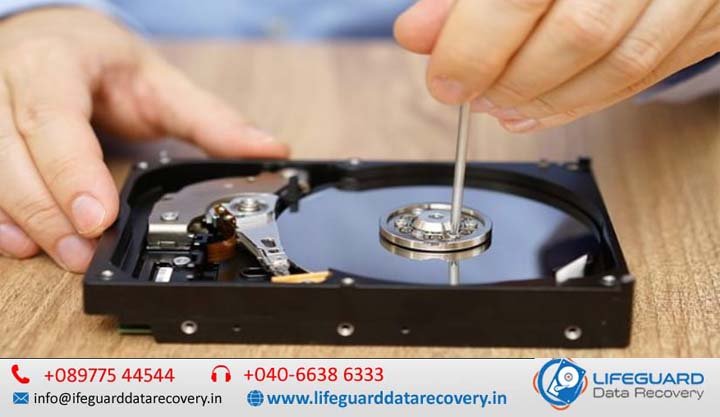
Whether you hear a sudden clicking sound or encounter a blank screen during bootup, experiencing a storage failure is stressful. Understanding what causes hard drive failure is essential for protecting sensitive documents, photos, and critical business data before total loss occurs.
While all storage media inevitably reaches the end of its operational lifecycle, most hard drive crashes result from specific physical, electrical, logical, or thermal causes. This comprehensive guide breaks down why hard drives fail, the critical warning signs to watch for, step-by-step diagnostic fixes, and how to preserve your files.
Understanding Hard Drive Failure: Mechanical vs. Logical Issues
To diagnose a malfunctioning drive properly, you must first distinguish between hardware (mechanical) failures and software (logical) failures.
-
Mechanical Hard Drive Failure: Occurs when physical internal components break down-such as read/write heads contacting spinning magnetic platters or motor bearings seizing. Physical damage usually produces distinct mechanical noises (clicking, grinding) and requires professional hardware intervention.
-
Logical Hard Drive Failure: Occurs when the physical drive remains functional, but the file system, partition table, or boot sectors become damaged, corrupted, or unreadable. Logical failures can often be repaired using software utilities without physical opening or specialized lab equipment.
The 5 Primary Reasons and Causes of Hard Drive Failure
Exploring common causes of hard drive failure reveals five core factors responsible for the majority of storage crashes.
1. Mechanical Wear and Head Crashes
Traditional HDDs rely on high-speed magnetic platters spinning at 5,400 to 15,000 RPM while read/write heads float mere nanometers above the surface on a cushion of air. A head crash occurs when physical impact, motor wear, or drop damage causes the read/write head to touch the spinning platter surface. This gouges magnetic coating off the disk, causing immediate catastrophic failure.
2. Electrical Spikes and Power Surges
A sudden voltage spike-caused by lightning strikes, unstable power grids, or low-quality power supply units (PSUs)-can destroy a hard drive’s Printed Circuit Board (PCB). Power surge hard drive damage typically fries the drive controller, voltage-smoothing diodes, or motor controller chips, leaving the drive entirely unresponsive without spinning up.
3. Heat, Inadequate Airflow, and Environmental Factors
Excessive heat causes internal metal components to expand unequally, altering delicate mechanical tolerances. An overheating hard drive accelerates component degradation, breaks down lubrication on spindle bearings, and alters magnetic properties on platters. Poor computer case ventilation, blocked fan vents, and high ambient temperatures are direct hard drive crash causes.
4. File System Corruption and Software Errors
Not every failure stems from hardware damage. Abrupt system shutdowns, pulling out external drives without safely ejecting them, OS crashes during writing operations, and malware infections lead to file system corruption. When file index tables (like NTFS, FAT32, or APFS) break down, the OS cannot locate files, marking the entire drive as a corrupted hard drive or unformatted raw space.
5. Bad Sectors and Degrading Storage Media
Storage platters are divided into billions of microscopic sectors. Over time, physical imperfections or magnetic degradation create bad sectors on hard drive surfaces.
-
Soft Bad Sectors: Caused by logical writing errors or interrupted data streams; can usually be cleared with software zero-fills.
-
Hard Bad Sectors: Caused by physical wear or manufacturing flaws; permanently unusable sectors that the drive attempts to reallocate. An increasing number of bad sectors indicates impending structural failure.
Critical Signs and Symptoms of Hard Drive Failure
Recognizing early hard drive failure symptoms allows you to back up vital files before total media lock-up occurs.
| Symptom Category | Observable Warning Signs | Probable Underlying Cause |
| Auditory | Repeating clicking sound, high-pitched whining, or quiet rhythmic beeping | Mechanical read/write head assembly failure or seized motor bearing |
| Performance | File transfers freeze at 99%, system locks up opening folders, slow boot times | Rapidly accumulating bad sectors or degrading read/write head efficiency |
| System Visibility | Operating system displays blue screens (BSOD) or unreadable drive warnings | Corrupted boot records, bad sector clusters, or degraded file system index |
| Hardware Detection | Computer fails to boot; “Boot Device Not Found” or drive absent in BIOS | Blown controller PCB diodes, dead spindle motor, or loose connection interface |
Auditory Warning Signs: Clicking, Beeping, and Grinding
A functional drive operates with a low hum and faint clicking during intensive read operations. However, a distinct, repeating hard drive clicking noise (known in recovery circles as the “Click of Death”) indicates that the actuator arm cannot find track positioning data and is snapping back into its park position. A hard drive making beeping sound usually means the spindle motor is attempting to turn, but the heads are physically stuck glued to the platter surface (head seizure).
Performance Drops, Freezes, and Thermal Symptoms
When your computer freezes regularly while opening large files or folder directories, it often indicates the drive controller is attempting repeated read retries on bad sectors. Monitoring software exhibiting hard drive overheating symptoms-such as internal drive temps consistently exceeding 55°C (131°F)-indicates immediate cooling or airflow intervention is necessary.
File Disappearance, Corruption, and System Read Errors
Receiving repeated disk read error notifications, finding opening files truncated or filled with gibberish, or noticing folders vanishing overnight are classic indicators of escalating hard drive failure causes.
System Startup Failures and BIOS Unrecognizability
If your system reboots into error screens displaying boot device not found, hard drive not detected, or BIOS not recognizing hard drive, the drive has either suffered total logical boot block destruction, broken connection pathways, or complete PCB electrical failure.
SSD vs. HDD Reliability: Do Solid-State Drives Fail Differently?
Understanding reasons for hard disk failure requires distinguishing traditional mechanical drives (HDDs) from Solid-State Drives (SSDs). While SSDs lack moving parts, their underlying architecture creates unique failure profiles:
When evaluating SSD vs HDD reliability, mechanical HDDs generally fail progressively offering acoustic warnings like clicking or sector retries. SSDs, by contrast, frequently experience sudden death syndrome caused by flash controller firmware corruption, power loss events bricking the drive, or reaching total write capacity limits (TBW).
Immediate Steps: What to Do When Your Hard Drive Starts Failing
If you suspect why is my hard drive failing or hear unnatural drive noises, taking immediate correct action determines whether your data can be rescued:
Emergency Triage: When to Stop Powering On the Drive
-
If the drive clicks, grinds, or squeals: Power down the machine immediately. Every minute a mechanically damaged drive spins, the floating head scrapes millions of sector blocks off the platter, destroying recoverable data forever.
-
Do NOT run automated disk repair tools: Commands like
chkdsk /f /ron Windows or Disk Utility First Aid on macOS force intensive read/write passes across damaged sectors, rapidly accelerating hardware collapse on unstable drives.
Checking S.M.A.R.T. Health Status Safely
Self-Monitoring, Analysis, and Reporting Technology (SMART disk errors) allows drives to track internal health metrics. You can read these diagnostics safely using lightweight software like Crystal DiskInfo (Windows) or smart montools (Linux/macOS).
Key metrics to monitor for imminent failure include:
-
Reallocated Sectors Count (ID 05): Number of damaged sectors moved to spare space. Any rising non-zero value indicates physical degradation.
-
Current Pending Sector Count (ID C5): Unstable sectors waiting for remapping.
-
Uncorrectable Sector Count (ID C6): Sectors that cannot be read/written; strong predictor of total failure.
Step-by-Step Fixes for Recoverable Logical Hard Drive Errors
If your drive shows no physical noise and displays healthy S.M.A.R.T. attributes, follow these steps to fix software-level detection and driver issues.
Cable, Port, and Power Connection Checks
-
Action: Shut down the system, disconnect external enclosure cables, and replace SATA data/power lines.
-
Why: Corroded, bent, or loose connectors often simulate drive failure by dropping communication signals to the motherboard controller.
Fixing File System and Partition Errors via Built-In Tools
-
Action: For non-clicking drives showing file system errors, run targeted non-destructive repair tools:
-
Windows: Open Command Prompt as Admin and run
chkdsk X: /f(replace X with the corrupted volume letter). -
macOS: Launch Disk Utility, select the volume, and run First Aid.
-
-
Why: Fixes minor structural table corruption and file system pointer inconsistencies.
Updating Storage Drivers and BIOS Recognition
-
Action: Check system Device Manager under Disk Drives and Storage Controllers. Update drivers or toggle host controller settings (AHCI vs. RAID) inside motherboard BIOS setups.
-
Why: Incompatible storage drivers or misconfigured BIOS modes prevent the OS from assigning drive letters to working physical drives.
How to Prevent Hard Drive Failure and Protect Your Data
While no storage medium lasts indefinitely, following basic preventative care extends drive life and eliminates catastrophic data loss scenarios.
Maintaining Optimal Thermal and Electrical Conditions
-
Use an Uninterruptible Power Supply (UPS): Protects against sudden outages and regulates power delivery during voltage brownouts and surge events.
-
Maintain Dust Filters and Case Fans: Keep internal operating temperatures below 45°C (113°F) through clean airflow routes.
-
Avoid Shock While Operational: Never move, tilt, or jar external hard drives or laptop systems while the drive internal platters are actively spinning.
Implementing the 3-2-1 Backup Rule
The absolute protection against hard disk failure reasons is maintaining redundant data backups:
-
3 Copies of your data (1 primary original + 2 backup sets).
-
2 Different storage media types (e.g., local external HDD + internal array/NAS).
-
1 Copy stored offsite or in cloud infrastructure (protecting against physical theft, fire, or flood).
Frequently Asked Questions (FAQs)
How long does a typical hard drive last before failing?
Under normal operating conditions, an enterprise or desktop hard drive lasts 3 to 5 years. While some well-maintained drives operate past 7–10 years, failure probability increases sharply past year 4 due to mechanical bearing wear and sector degradation.
Can a failing hard drive be repaired or fixed?
Logical errors (file system corruption, soft bad sectors) can be repaired using software utilities. However, physical mechanical failures (broken heads, seized motors, damaged platters) cannot be “repaired” for continued regular use. Data recovery specialists temporarily restore physical operation in cleanrooms solely to clone stored data onto a new drive.
Why is my hard drive clicking and how can I fix it?
A clicking sound indicates that the read/write heads are failing to align with platter tracks and are hitting physical stops. You cannot fix a clicking drive with software. Immediately turn off the device and contact a professional data recovery service if the stored files are critical.
Will formatting a corrupted hard drive fix it?
Formatting rebuilds the file system and clears logical bad sector flags, making a corrupted drive usable if the damage was purely software-based. However, if the corruption was caused by underlying physical platter degradation, new bad sectors will quickly reappear, leading to repeated failures.
Conclusion
Understanding what causes hard drive failure-from mechanical head crashes and power surges to logical corruption and thermal wear-empowers you to spot early warning signs before disaster strikes. When managing a failing drive, always prioritize acoustic diagnosis: silent logical errors can often be repaired with software utilities, whereas physical clicking or grinding noises require immediate shutdown to prevent permanent data destruction. By monitoring drive S.M.A.R.T. metrics and maintaining an automated 3-2-1 backup strategy, you ensure your essential files remain safe regardless of hardware health.