
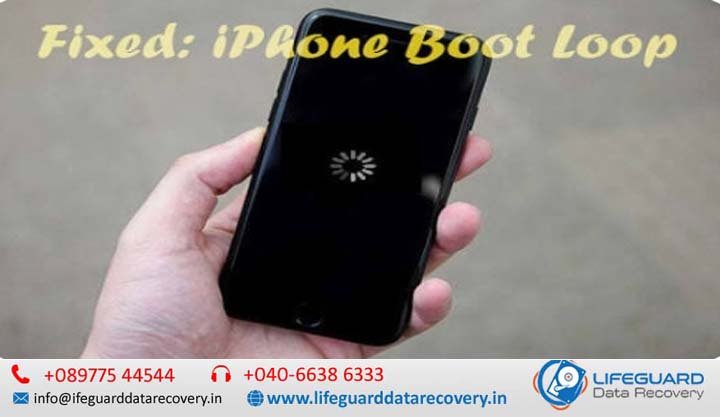
When an iPhone enters a boot loop, its operating system gets trapped in an endless startup cycle. The device attempts to initialize, displays the Apple logo, fails to load the kernel, shuts down, and restarts the process repeatedly. Understanding why this reboot loop happens-and knowing the exact non-destructive steps to take-can mean the difference between recovering your device with data intact and losing your files permanently.
Understanding the iPhone Boot Loop: Symptoms & Overview
A boot loop occurs when the iOS Low-Level Bootloader (LLB) or iBoot process starts but encounters a critical software or hardware exception before the operating system kernel can fully load.
| Condition | Visual Behavior | System State | Hardware/Software Status |
| Boot Loop | Flashes Apple logo for 10-30 seconds, turns black, then restarts continuously. | Dynamic failure cycle; bootloader crashes repeatedly. | Interrupted firmware, corrupt system files, shorted hardware component, or battery failure. |
| Frozen on Apple Logo | Displays a static Apple logo indefinitely without turning off. | Static freeze; execution stops at a specific boot phase. | Storage overload, corrupted system cache, or failed software installation. |
| Black Screen of Death | Screen remains off; phone may vibrate or play sounds. | Display subsystem or backlight issue. | Blown backlight driver, disconnected display flex cable, or drained battery. |
Visual Signs Your iPhone Is Trapped in a Reboot Loop
Recognizing the exact symptoms helps determine whether you are dealing with a standard iOS crash or a hardware failure:
-
The Timed Restart: The screen turns on, displays the Apple logo for a consistent interval (e.g., exactly 15 seconds), goes completely black, and immediately turns back on.
-
Screen Artifacts or Fading: The Apple logo may flash white, turn red or blue briefly, or fade out slowly before restarting.
-
Thermal Spikes & Battery Drain: The back of the iPhone (near the main board or battery) feels warm to the touch while the battery drains rapidly despite being stuck in the startup loop.
Primary Causes of an iPhone Boot Loop Problem
Software Triggers: Storage Overload, Failed iOS Updates, and Corrupt Firmware
Software-related boot loops are common and usually reversible without physical repair:
-
Zero-Storage Kernel Panic (iTunes Error 14): When an iPhone reaches 100% capacity, iOS loses the temporary buffer space required to cache system files during startup. This triggers an immediate kernel crash on boot.
-
Interrupted Over-the-Air (OTA) Updates: If an iOS update is interrupted by a lost Wi-Fi connection or a dead battery mid-installation, essential operating system files become corrupted or partially written.
-
Jailbreaking or Corrupted System Extensions: Installing unverified tweaks or custom firmware modified root-level system files, leading to execution failures during the iBoot phase.
Hardware Triggers: Drops, Water Damage, Degraded Batteries, and Shorted Sensors
Physical damage often requires module isolation or professional hardware diagnosis:
-
Earpiece/Proximity Sensor Short: On modern iPhones (iPhone X through iPhone 16), liquid entering the top speaker grill causes micro-corrosion on the earpiece/proximity sensor flex cable. This triggers a hardware
watchdog timeoutpanic during boot. -
Battery Degradation & Voltage Instability: A severely degraded battery may deliver enough voltage to show the Apple logo, but fails when the CPU requests higher current to initialize hardware components.
-
Drop Damage & Cracked Solder Joints: Physical drops can fracture micro-solder joints beneath the CPU, Power Management IC (PMIC), or NAND flash storage chip.
Data Safety & Recovery Risks Before Troubleshooting
Yes, in most software-driven boot loops, your data remains fully intact on the encrypted NAND flash storage. However, improper recovery steps can permanently erase your files.
If your device suffers from severe hardware damage or requires a deep factory reset, consulting a [professional iPhone data recovery service] prior to initiating destructive restores can preserve irreplaceable photos and documents.
Step-by-Step Solutions: How to Fix an iPhone Stuck in a Boot Loop
A force restart cuts power from the battery to the motherboard, clearing cached memory locks without deleting your data.
iPhone 8, SE (2nd/3rd Gen), X, XS, XR, 11, 12, 13, 14, 15, and 16 Series:
-
Press and quickly release the Volume Up button.
-
Press and quickly release the Volume Down button.
-
Press and hold the Side Button continuously until the Apple logo appears, then release.
iPhone 7 and iPhone 7 Plus:
-
Press and hold both the Volume Down button and the Sleep/Wake (Side) button simultaneously until the Apple logo appears.
Use Finder or iTunes to Reinstall iOS via Recovery Mode (No Data Loss)
If a force restart fails, reinstalling the operating system firmware via Recovery Mode fixes corrupted system files while keeping user data safe.
-
Connect your iPhone to a Mac (Finder) or Windows PC (iTunes / Apple Devices app) using a certified Lightning or USB-C cable.
-
Put the device into Recovery Mode using the force restart key combinations listed above, but continue holding the final button even after the Apple logo appears until you see the computer-and-cable icon.
-
On your computer screen, select Update when prompted. Finder/iTunes will download the latest iOS version and reinstall system files without touching your user data.
Step 3: Deep Firmware Update (DFU) Mode Restore (Last-Resort Software Fix)
DFU (Device Firmware Update) mode bypasses the iBoot software entirely to rewrite system firmware from the foundation. Note: This procedure erases all device data.
-
Connect your iPhone to your computer.
-
For iPhone 8 and newer: Press and release Volume Up, press and release Volume Down, hold the Side Button for 10 seconds.
-
While continuing to hold the Side Button, press and hold Volume Down for 5 seconds.
-
Release the Side Button while continuing to hold Volume Down for an additional 10 seconds.
-
If the screen remains completely black (no logos or icons), your phone is in DFU mode. Click Restore in Finder/iTunes.
Step 4: Diagnostic Hardware Checks & Module Isolation
If software flashing fails with iTunes Error 4013, 4014, or 9, physical hardware requires inspection:
-
Inspect the Charging Port: Clear lint or debris that could be causing short circuits across power pins.
-
Test Power Output: Plug the iPhone into an official wall charger for at least 30 minutes; attempt a force restart while connected to power.
-
Disconnect Peripheral Cables (Advanced): If comfortable opening the device, disconnecting the front sensor flex assembly often resolves boot loops caused by water damage or dropping. For hardware repairs beyond basic troubleshooting, contact an authorized service provider or a trusted [local iPhone repair service].
How to Prevent Your iPhone from Entering a Restart Loop Again
Preventing system instability requires simple maintenance habits:
-
Maintain Storage Margins: Keep at least 15% (or 10GB–15GB) of internal storage free at all times to allow system caching.
-
Update iOS Safely: Always install major iOS updates while connected to stable Wi-Fi with a battery level above 50% (or plugged into power).
-
Monitor Battery Health: Replace your battery via official service channels when maximum capacity drops below 80% under Settings > Battery > Battery Health & Charging.
-
Avoid Unverified Charging Cables: Use MFi-certified chargers to prevent voltage spikes from damaging the Power Management IC.
Frequently Asked Questions (FAQs)
Why does my iPhone keep restarting only when plugged into a charger?
This typically points to a degraded battery that cannot process charge current, a shorted charging port assembly, or a damaged power IC controller. The phone detects erratic voltage input and triggers a defensive system restart.
Will updating my iPhone in Recovery Mode delete my photos and apps?
No. Choosing Update in iTunes or Finder reinstalls the operating system system binaries while retaining your user partitions, photos, and application data intact. Only choosing Restore wipes user files.
What causes an iPhone boot loop right after replacing the battery or screen?
This is caused by either a torn front sensor/earpiece flex cable, improper screw placement causing board damage (long-screw damage), or an incompatible third-party battery micro-controller that fails iOS security authentication.
When should I take my iPhone to Apple or an independent technician?
You should seek professional repair if your iPhone fails Recovery/DFU mode updates with repeated error codes (Error 9, 14, 4013, 4014), if the device became hot before looping, or if the boot loop started immediately after water exposure or a hard fall.
Conclusion: Safely Recovering Your iPhone
Resolving an iPhone boot loop requires a progressive approach: start with low-risk solutions like a model-specific force restart, advance to non-destructive Recovery Mode updates, and save full DFU restores or hardware repairs as a final resort. By prioritizing data preservation early, most users can successfully exit the boot loop without losing their personal files.