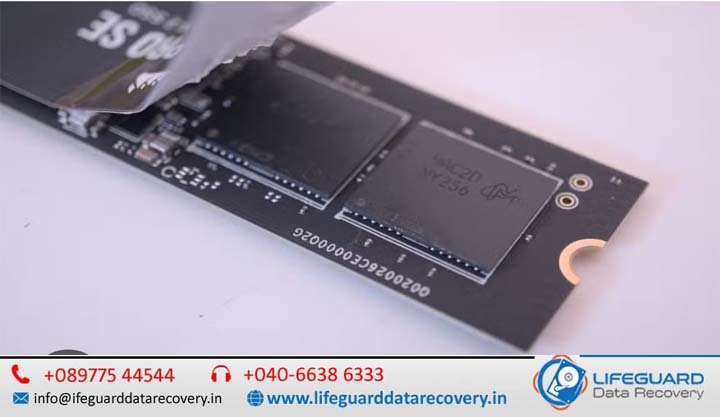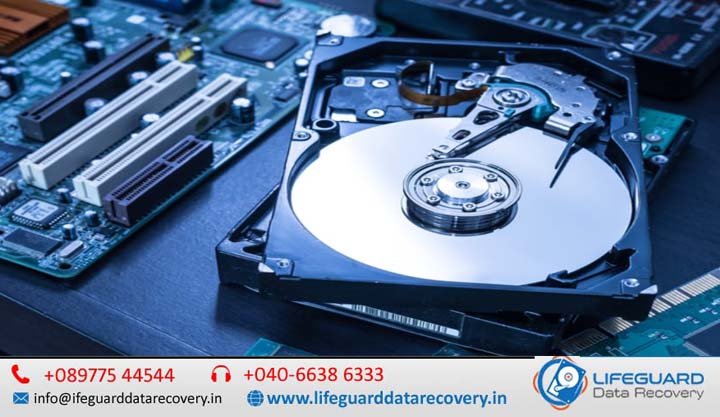
Why does Windows stop detecting hard drives?
Few things match the sheer frustration of booting up your computer only to realize your storage disk has suddenly vanished. One minute you are accessing your data, and the next, your second internal storage unit or external backup drive is nowhere to be found. When a computer’s software layer stops communicating with its physical storage components, tracking down the root cause requires a systematic approach. Why does Windows stop detecting hard drives?This comprehensive guide walks you through why Windows storage detection issues occur and provides clear, non-destructive steps to restore your missing drive. Understanding Windows Hard Drive Detection Problems For a hard drive or Solid-State Drive (SSD) to appear inside your operating system, a precise digital handshake must occur between multiple layers of hardware and software. First, the physical drive draws power and establishes a data link with the motherboard. Next, the system firmware (BIOS/UEFI) detects the component at boot. Once the operating system loads, Windows uses specific storage controller drivers to read the drive’s partition table and assign it a file path. If any part of this communication link breaks, a hard drive recognition error occurs. While data corruption or physical hardware failures can cause this issue, it is frequently driven by simple software configuration errors or driver mismatches. What Happens When Windows Cannot Communicate with a Hard Drive? When Windows experiences storage communication issues, the symptoms vary based on where the connection broke: File Explorer Disappearances: The drive completely vanishes from This PC, yet other system components continue running smoothly. System Freezes and Lag: Attempting to open a directory causes the mouse cursor to spin infinitely, or causes File Explorer to crash. Device Manager Warning Flags: A yellow exclamation mark appears next to your storage controllers or generic mass storage devices. Hardware and Software Causes of Drive Detection Failures Storage detection failures typically fall into one of two categories: physical hardware issues or logical operating system errors. Common Hardware Faults (Cables, Ports, and Enclosures) Internal drives rely heavily on steady power delivery and secure data lines. Over time, SATA data cables can degrade due to heat, or M.2 NVMe drives can slightly shift in their sockets. For external hard drives, generic USB hubs often fail to provide the consistent power draw required by mechanical platters, resulting in a drive that spins up briefly but fails to register. Driver Conflicts and Windows Update Glitches Major Windows operating system updates occasionally overwrite stable, vendor-specific chipset or storage controller drivers with generic Microsoft alternatives. This can disrupt how the OS talks to modern NVMe controllers or legacy SATA RAID setups, leaving the drive temporarily stranded without a proper software translator. File System Corruption and Unallocated Space If a computer loses power or crashes while writing data, the drive’s master partition table can become corrupted. When this occurs, the hardware remains perfectly healthy, but Windows reads the storage space as RAW or Unallocated, rendering it invisible to File Explorer because it lacks a recognizable file structure (like NTFS or FAT32). Troubleshooting Undet undetected Hard Drives: Step-by-Step Fixes To safely resolve this issue without risking data loss, work through these fixes sequentially, moving from basic software checks to advanced hardware verification. 1.Check Disk Management for Drive Status: Requires Admin Privileges. Scan the lower half of the window for your missing drive. If it appears with a blue bar but has no letter, right-click the block, select Change Drive Letter and Paths, click Add, and assign a letter (e.g., E:). If it shows as Offline, right-click the disk name and select Online. 2.Power Cycle the System and Isolate Hardware:Physical Triage. Shut down your computer completely and unplug the power cable. For external drives, bypass USB hubs and plug directly into a rear motherboard USB port. For internal drives, re-seat the SATA or M.2 connection. Power the system back on to check if a loose connection was the culprit. 3.Roll Back or Reinstall Storage Drivers:Device Manager Fix. Expand Storage controllers and IDE ATA/ATAPI controllers. Look for items with yellow warning triangles. Right-click your controller, select Properties, and check the Driver tab to select Roll Back Driver if available. If not, select Uninstall Device and restart your PC to force Windows to reinstall a clean driver. 4.Disable USB Selective Suspend:Power Settings Adjustment. Open the Control Panel, navigate to Power Options, and click Change plan settings next to your active power plan. Click Change advanced power settings. Expand USB settings > USB selective suspend setting, change it to Disabled, and click Apply. This stops Windows from cutting power to external drives during brief periods of inactivity. How to Prevent Future Windows Storage Detection Issues Monitor S.M.A.R.T. Health Attributes: Use built-in diagnostic tools to monitor attributes like reallocated sector counts, giving you advance warning before mechanical components fail. Safely Remove Hardware: Always use the “Safely Remove Hardware and Eject Media” icon in your system tray before unplugging external storage to prevent logical file system corruption. Block Optional Driver Updates: Avoid using third-party driver-booster applications, and double-check optional Windows updates if your storage setup relies on specialized RAID configuration software. Frequently Asked Questions What causes a hard drive to disappear in Windows? It is typically caused by loose power or data cabling, a corrupted storage driver mapping following an operating system update, or structural corruption within the drive’s partition table. Why is my hard drive missing from File Explorer? If a drive is missing from File Explorer but visible elsewhere, it usually means the hardware is functional, but Windows hasn’t assigned it a local drive letter, or the partition format is unrecognized (such as a Linux ext4 format). Why does Windows stop recognizing a hard drive after an update? Major system updates can replace stable OEM storage controller drivers with generic Microsoft drivers. Additionally, updates can alter power-saving modes or fast startup states, which can cause secondary disks to fail to initialize at boot. Can outdated drivers prevent Windows from detecting a hard drive? Yes. Modern high-speed NVMe solid-state drives and complex multi-drive RAID setups require specific, up-to-date