
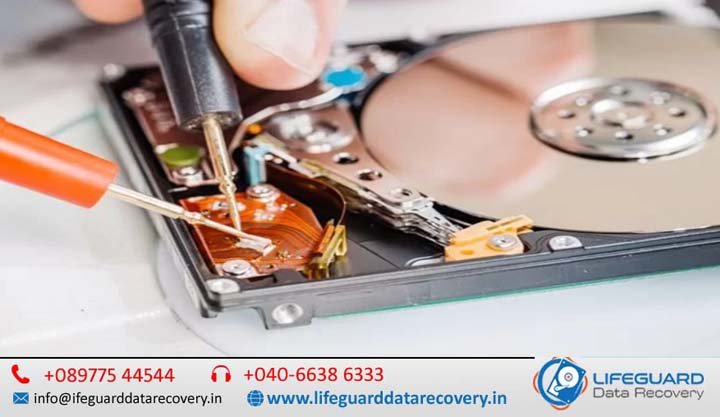
how to recover data from failing hard drive
A failing mechanical hard drive is a ticking clock. Every rotation of its magnetic platters and every movement of its read/write heads can bring a degrading drive closer to total failure. If your drive is exhibiting erratic behavior, timing is critical. If you need to know how to recover data from a failing hard drive, this guide covers safe DIY triage methods, sector-by-sector cloning techniques, and clear guidelines on when to stop DIY efforts and consult a professional. Emergency Action Plan: What to Do the Second Your Hard Drive Starts Failing If you suspect your drive is failing, immediate action is required to recover data before the hard drive fails completely. Power Down Immediately: If the drive is making unusual noises, freezing your system, or causing blue-screen errors, disconnect power. Do not let the drive idle; background OS tasks (such as indexers or anti-malware utilities) continuously stress unstable media. Do Not Run Native Disk Repairs: Avoid utilities like Windows CHKDSK or macOS First Aid on physical drives showing signs of degradation. These utilities attempt to repair the file system by writing, moving, and remapping data across bad sectors, which can stress failing drive heads to failure and overwrite target data. Disconnect and Label: If dealing with external hard drive recovery, safely unmount and unplug the USB cable. For internal hard drive recovery, disconnect both the SATA data and power cables from the motherboard. Prepare a Destination Storage Media: DIY recovery requires a separate, healthy target drive with equal or greater storage capacity than the failing media. Never attempt to save recovered files back onto the degrading drive. Understanding Hard Drive Failure: Is Your Drive Logically Corrupted or Physically Damaged? Determining the failure type is essential for selecting appropriate hard drive recovery methods. Hard drive failure generally falls into three categories: Logical Failure: The drive’s physical components function properly, but the file system structure, partition table, or master file table (MFT) is corrupted. You may encounter prompts asking to format the disk before use. DIY recovery is often viable in these cases. Physical Damage: Electrical damage to the Printed Circuit Board (PCB), cracked SATA ports, or water/heat exposure. DIY software cannot resolve physical component damage. Mechanical Crash: Physical components inside the sealed drive enclosure-such as the actuator arm, spindle motor, or read/write heads-have failed or are actively scraping the platter surface. Software cannot fix mechanical failure; continuing to power the drive will destroy data platters. Common Symptoms and Signs a Failing Hard Drive Identifying early signs of a failing hard drive allows you to extract files before the storage controller locks up or the platters suffer irreversible damage. Physical and Auditory Warnings (Clicking, Grinding, or Buzzing Noises) Auditory abnormalities indicate mechanical problems: Repeated Clicking (“Click of Death”): The read/write head assembly is attempting to calibrate or read system files, failing, hitting the physical limiter, and resetting. Attempting software-based clicking hard drive recovery at home will scrape magnetic material off the platters, making files permanently unrecoverable. High-Pitched Grinding or Scraping: Indicates that the read/write heads have physically contacted the spinning platters (a head crash). Power down the drive immediately. Buzzing or Beeping: Typically indicates a seized spindle motor or heads stuck directly on the platter surface (head sticktion), preventing the spindle from spinning up. Performance and File System Symptoms (Sluggishness, Corrupted Files, & Freeze-Ups) Software-level indicators often precede physical hardware collapse: Slow Hard Drive Data Recovery & Transfer Speeds: Transfer rates dropping to zero bytes per second or Windows Explorer freezing when attempting to copy files indicates the drive controller is hung on bad sectors. Spontaneous Corruption: Files failing to open, reporting invalid file formats, or displaying altered file names points to expanding file system corruption or degraded sectors. Operating System Freezes: The host computer hangs whenever the failing storage device is connected, caused by the OS waiting for an I/O response from non-responsive sectors. System & Hardware Recognition Issues (SMART Errors & Drives Not Detected) Hardware monitoring services and BIOS environments provide early warning logs: SMART Hard Drive Errors: Self-Monitoring, Analysis, and Reporting Technology (S.M.A.R.T.) warnings during POST boot up-such as “Reallocated Sectors Count,” “Current Pending Sector Count,” or “Uncorrectable Sector Count”-indicate hard drive degradation. Drive Shows as RAW or Uninitialized: Operating systems cannot identify the file format (NTFS, FAT32, APFS) due to master boot record or partition table corruption, necessitating steps to recover data from corrupted hard drive volumes. Device Not Detected: The BIOS/UEFI or OS Disk Management console does not detect the storage device, signifying hardware-level failure, corrupted firmware, or interface failure requiring hard drive not detected recovery evaluation. DIY vs. Professional Hard Drive Data Recovery: Decision Matrix Use this matrix to assess whether your drive is suitable for DIY recovery methods or requires cleanroom evaluation: Failure Scenario / Symptom Primary Cause Safe for DIY Software? Recommended Action Clicking, grinding, or buzzing Mechanical head crash / motor failure NO Power down immediately; send to a professional hard drive data recovery service. SMART attribute failure warnings Sector degradation Conditional Clone drive sector-by-sector via image tool; do not scan original media directly. Accidental format or file deletion Logical metadata removal YES Run recovery software targeting original volume from a secondary healthy OS host. Raw file system / inaccessible drive Partition table structure corruption YES Mount as secondary drive; create sector image, then run failing HDD recovery software. Drive completely dead (no spin, no light) PCB failure / electrical surge NO Seek hardware component replacement or professional PCB adaptation. Dropped drive while operating Mechanical misalignment / surface damage NO Do not power on; cleanroom physical recovery is required. Step-by-Step Guide: How to Recover Data from a Failing Hard Drive Safely If your drive does not show mechanical clicking or grinding, follow this step-by-step methodology to recover files from a failing HDD while minimizing media stress. Step 1: Isolate the Connection (Internal vs. External Hard Drive Recovery) Faulty USB cables, damaged bridge boards inside external enclosures, or poor SATA connections can mirror hard drive failure symptoms. For External Drives: Carefully disassemble the